The visual AI canvas editor has become the central workspace for anyone building with generative models. Instead of toggling between a prompt interface, a photo editor, and a file manager, creators now expect a single infinite canvas where they can generate, refine, composite, and export in one session. The shift started with inpainting tools bolted onto image generators, but by mid-2026 the category has matured into something closer to a full design environment powered by AI.
What makes a visual AI canvas editor different from a standard image editor? Three things: native model access (text-to-image, inpainting, outpainting built into the canvas layer stack), non-destructive workflows (every generation is a layer you can mask, blend, or roll back), and increasingly, the ability to chain multiple models together. That last point is where the category gets interesting for teams shipping production assets, not just experimenting with prompts.
This article breaks down what the current generation of canvas editors actually offers, where each tool fits, and what to look for if you need more than a single-model playground.
What a Visual AI Canvas Editor Actually Does
A visual AI canvas editor combines a freeform spatial workspace with generative AI capabilities baked into the editing flow. At minimum, that means you can select a region of your canvas and run a generation or edit operation on it without leaving the app. At the higher end, it means building multi-step workflows where one model's output feeds directly into another.
The core operations most canvas editors support:
- Text-to-image generation directly on the canvas, placing results as new layers
- Inpainting and outpainting, letting you extend or modify specific regions
- Layer-based compositing, so generated and hand-edited elements coexist
- Prompt-to-edit, where you describe changes in natural language rather than using manual selection tools
- Batch variations, generating multiple options for a region and picking the best one
The practical value is speed. A product photographer who previously needed Photoshop for compositing, a separate AI tool for background generation, and a third service for upscaling can now do all three on one canvas. A game artist can sketch a rough layout, generate detailed assets in each region, and iterate without round-tripping files between apps.
Top Visual AI Canvas Editors Compared
Not every tool calling itself a "canvas editor" offers the same depth. Here is how the leading options break down by what they actually deliver for creative workflows.
Canva Magic Studio
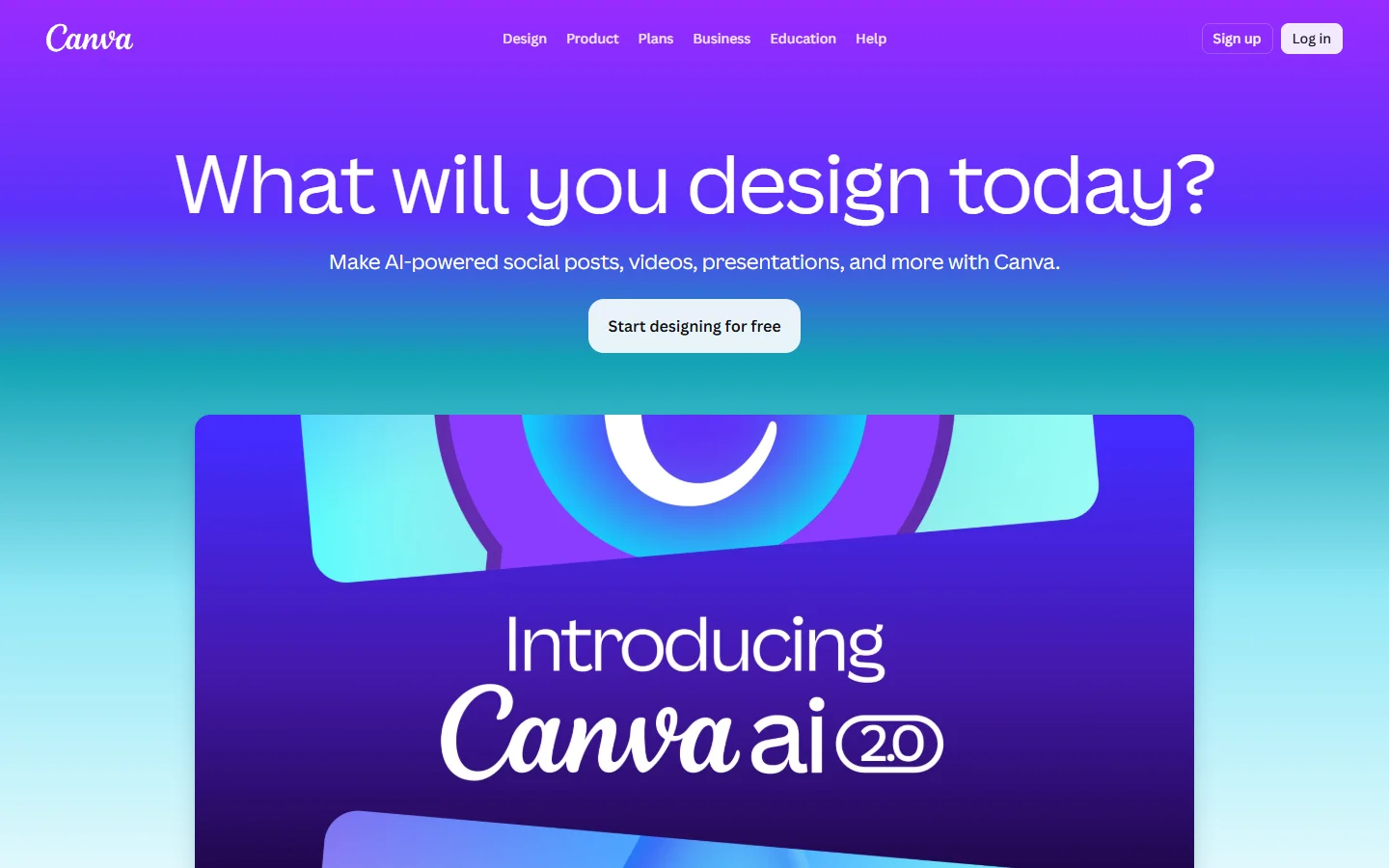
Canva added Magic Studio as its AI layer in 2026, integrating text-to-image (Dream Lab), Magic Eraser, and Magic Expand directly into the familiar drag-and-drop canvas. The strength is accessibility: anyone on a Canva plan can use AI features without learning a new tool. The limitation is depth. You cannot chain models, swap out backends, or access generation via API, which makes it less suited for production-scale content pipelines.
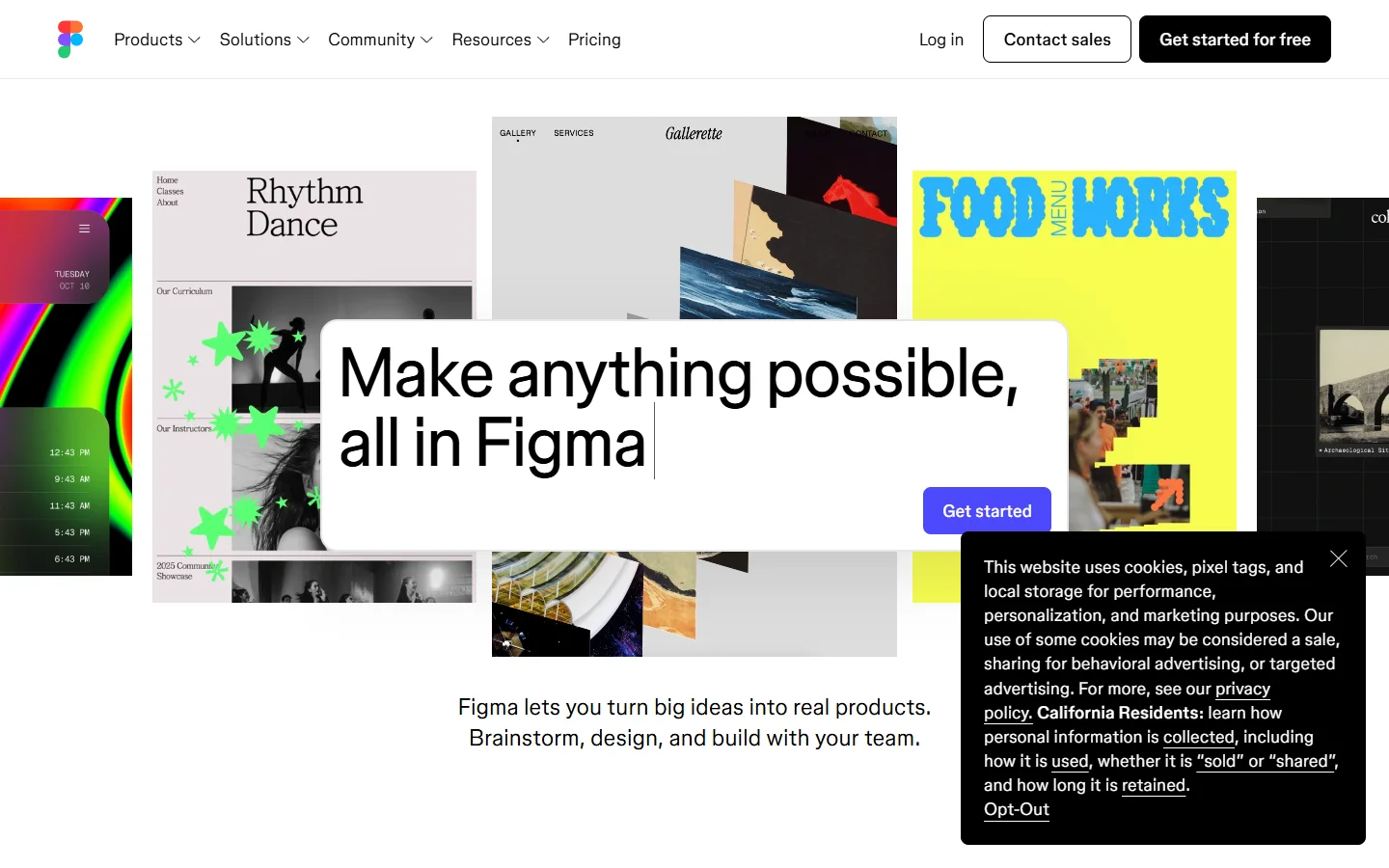
Figma AI
Figma has moved into generative territory with auto-layout suggestions, component generation from text descriptions, and design-to-code exports. For UI/UX teams, Figma's AI canvas features feel native because they extend an already familiar multiplayer workspace. The gap is on the image generation side: Figma is optimized for interface design, not for photorealistic generation or video.
getimg.ai AI Canvas
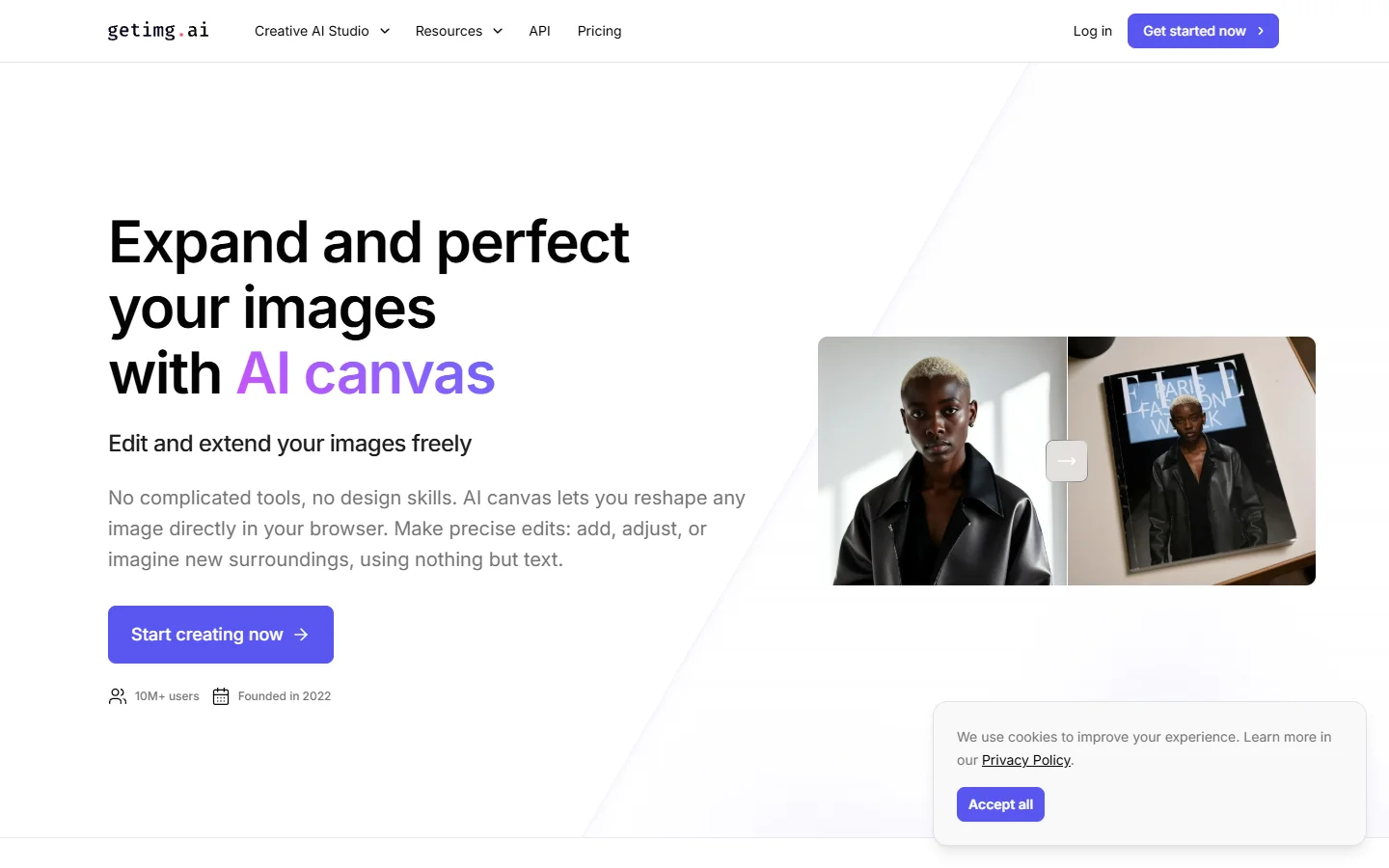
getimg.ai offers one of the more focused AI canvas experiences. You get an infinite canvas with inpainting, outpainting, and model selection (Stable Diffusion variants, FLUX) built into the workspace. It is a strong choice for illustrators and concept artists who want direct control over which model runs each generation. The trade-off is that it stays within the image domain; there is no workflow orchestration or API layer for teams that need to automate.
Krea AI
Krea is known for its real-time generation canvas, where you can sketch or drag reference images and watch the AI output update live. The interactive feedback loop is compelling for exploration and ideation. For polish and production output, you may still need to export and refine elsewhere, but as a brainstorming canvas it is hard to beat for speed.
Photopea
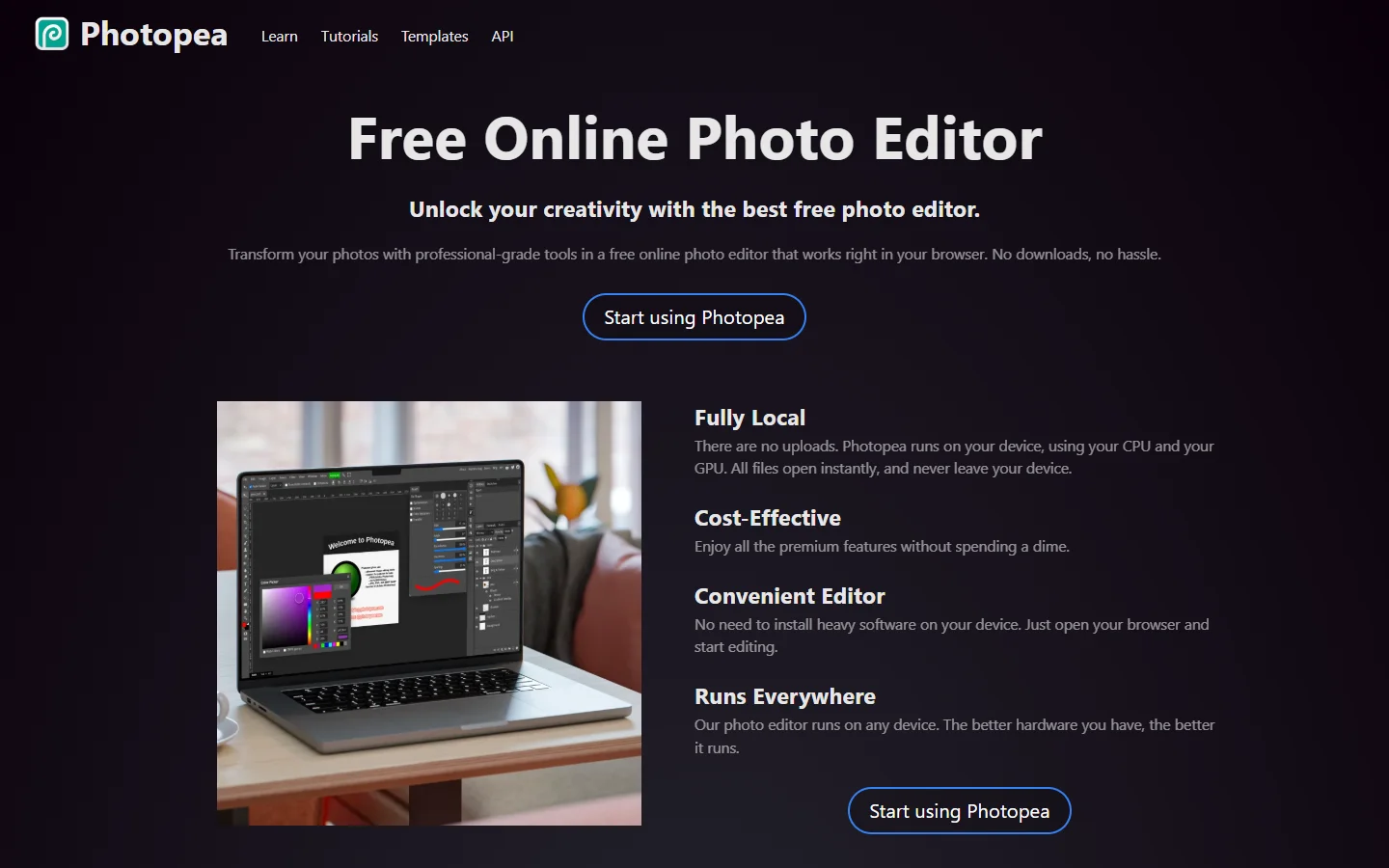
Photopea is a free browser-based editor that supports PSD files and has started integrating AI generation features. It is not a dedicated AI canvas in the way the others are, but for teams that need Photoshop-level layer control without a subscription, it fills a real gap. AI features are more limited than purpose-built canvas editors, but the compositing tools are solid.
When a Canvas Is Not Enough: The Pipeline Problem
The common limitation across most visual AI canvas editors is that they treat each project as a standalone session. You open the canvas, you generate, you export. But many teams need something more: repeatable pipelines where a prompt generates an image, that image gets upscaled, the background gets swapped, and the final output posts to a CMS or asset library, all without manual steps.
This is where the gap between a canvas editor and an end-to-end AI image pipeline becomes visible. Canvas editors excel at interactive, single-session work. Pipeline tools connect models into automated chains that run on schedule or via API call.
The most productive teams in 2026 use both: a canvas for creative exploration and a pipeline for production-scale batch operations.
What to Look for in a Visual AI Canvas Editor
If you are evaluating canvas editors for your team, here are the factors that matter most beyond the marketing demos:
- Model flexibility: Can you choose which model runs each operation, or are you locked into the platform's default? Teams working across styles (photorealistic, illustration, 3D) need multi-model support.
- Layer and mask control: Basic inpainting is table stakes. Look for non-destructive layer stacks, mask refinement, and the ability to revert individual generations without losing the rest of your work.
- API access: If you need to integrate canvas operations into a larger workflow, check whether the tool offers REST API endpoints or only works through the GUI.
- Export quality: Some canvas editors compress output aggressively. For print or high-resolution digital work, verify that exports maintain the full resolution of your generations.
- Collaboration: Real-time multiplayer editing is standard in design tools like Figma but still rare in AI canvas editors. If your team works simultaneously on shared assets, this matters.
The Role of Open Models in Canvas Editing
One trend shaping the visual AI canvas editor space is the growing availability of open-weight models that can be plugged into custom canvas environments. Tools built on FLUX, Stable Diffusion XL, or community fine-tunes give creators more control over style and output consistency than closed APIs.
For studios and agencies, this means you can potentially build a canvas editing environment tuned to your specific brand guidelines, using models fine-tuned on your own assets. The trade-off is setup complexity: running your own inference requires GPU infrastructure, model management, and prompt engineering that off-the-shelf canvas editors handle for you.
The middle ground is a text-to-image workflow platform that offers both a visual interface and API access to multiple models, letting teams toggle between interactive canvas work and automated pipelines depending on the task.
Frequently Asked Questions
What is a visual AI canvas editor?
A visual AI canvas editor is a spatial workspace that integrates generative AI models directly into the editing interface. Instead of generating images in one tool and editing in another, you can create, modify, and composite AI-generated content on a single infinite canvas.
Which visual AI canvas editor is best for beginners?
Canva Magic Studio is the most approachable option for beginners. It wraps AI generation features in a familiar drag-and-drop interface with templates and pre-built layouts that reduce the learning curve.
Can I use multiple AI models in one canvas editor?
Some canvas editors like getimg.ai let you select from multiple models per generation. Others lock you into a single backend. If multi-model access matters, check the tool's model selection options before committing.
Are visual AI canvas editors free?
Several options offer free tiers. Photopea is entirely free, getimg.ai has a limited free plan, and Canva offers some AI features on its free tier. Advanced features like batch generation and API access typically require a paid plan.
How do AI canvas editors handle intellectual property?
Policies vary by platform. Some grant full commercial rights to generated content, while others retain usage restrictions. Always check the terms of service for the specific tool and model you are using, especially for client work.
What is the difference between an AI canvas editor and a regular image editor?
A regular image editor like Photoshop works with existing pixels. An AI canvas editor can create new content from text prompts, fill in missing areas intelligently, and extend images beyond their original boundaries, all within the same workspace.
Do AI canvas editors support video?
Most current AI canvas editors focus on still images. Some platforms are beginning to add video generation capabilities, but dedicated video generation tools remain the better choice for motion content in 2026.