Turning a photograph into a moving clip no longer requires frame-by-frame animation skills or expensive motion graphics software. AI image-to-video models can now take a single still image and generate a short animated clip in under a minute, producing results that would have taken hours of manual work just two years ago. The technology has matured quickly, and BasedLabs makes several of the best models available through a single platform.
Whether you want to bring a product photo to life for social media, add motion to a landscape shot, or create short-form video content from existing images, the process follows a predictable set of steps. This guide covers everything from preparing your source image to choosing the right model and writing effective motion prompts.
Choosing the Right AI Model for Your Image
The first decision is which model to use. Each image-to-video model has distinct strengths, and matching the model to your content type produces significantly better results than picking one at random. The Kling model page and Veo model page show what each can do.
Kling 3.0 works well for natural scenes with clear depth separation. Landscapes, portraits, and product shots with clean backgrounds produce smooth, consistent motion. It generates clips up to 10 seconds and supports standard aspect ratios. If you are new to image animation, Kling is a solid starting point because of its reliability across content types. Check out the Kling 3.0 prompts guide for detailed tips on getting the best output.
Seedance 2.0 from ByteDance specializes in character animation. If your still image contains a person or animal, Seedance produces more natural body movement, facial expressions, and hair physics than most alternatives. It also supports multi-asset input, allowing you to feed up to 12 reference images for more controlled results. You can explore the Seedance model page to see sample outputs.
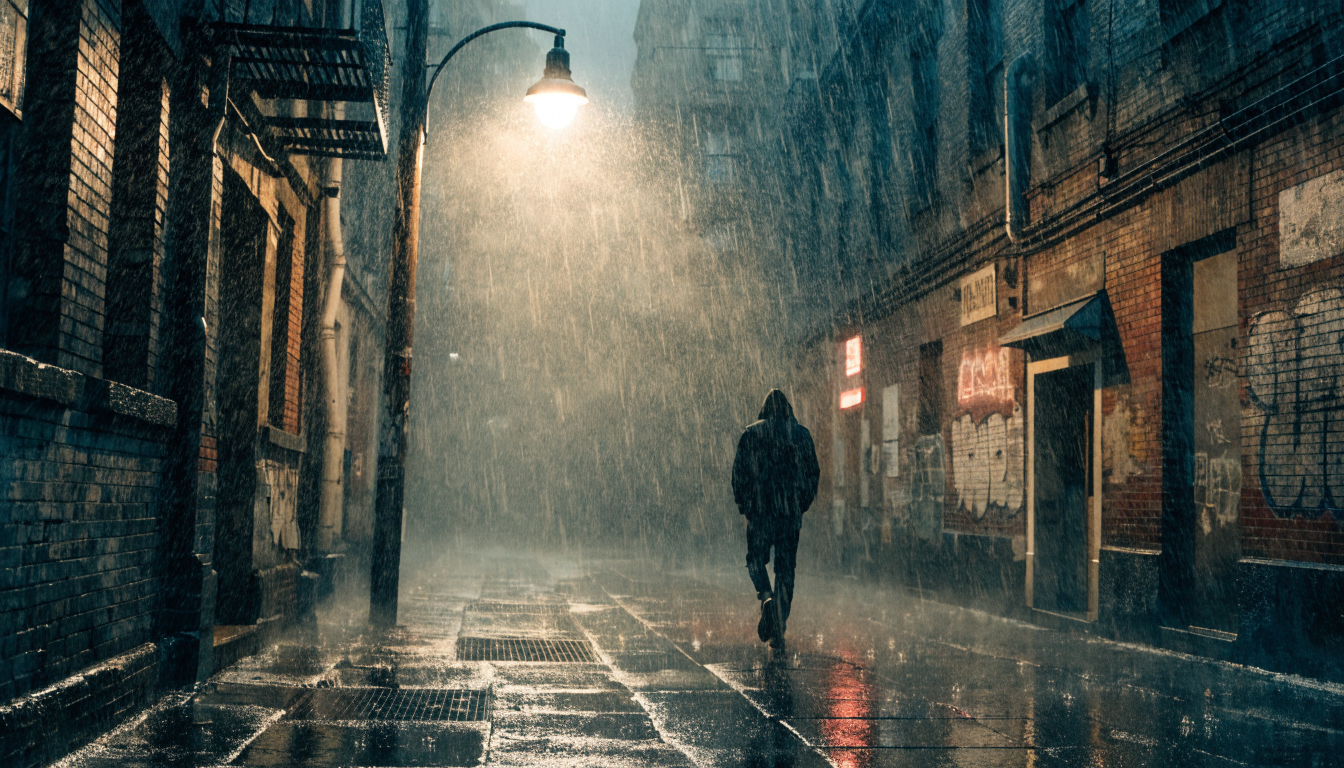
Google Veo 3.1 produces the highest fidelity physics simulation currently available. Fabric draping, water reflections, particle effects, and lighting shifts all look more physically accurate than competing models. Generation times are longer, but the quality gap is noticeable for professional use cases. The Veo 3.1 prompt guide covers the specific syntax and parameters.
Runway Gen-4 offers the most granular control through features like Motion Brush, which lets you paint specific areas of the image and assign different motion vectors to each region. This is useful when you need precise control over what moves and what stays static. For a head-to-head comparison between two top models, see Veo 3 vs Seedance.
Preparing Your Source Image
Image quality is the single biggest factor in animation quality. A low-resolution, compressed JPEG will produce blurry, artifact-filled motion regardless of which model you choose.
Resolution requirements. Aim for at least 1024x1024 pixels. Models downsample internally, but starting higher gives the model more detail to work with. If your source image is smaller, run it through an upscaler before animating. PNG format preserves more detail than JPEG, especially in areas with subtle gradients like skies or skin tones.
Clean the image first. Watermarks, heavy text overlays, and compression blocks will animate along with the rest of the image, creating distracting visual artifacts. Remove these using an inpainting tool or image editor before feeding the image to any video model. The comprehensive guide to AI video generation covers image preparation in more depth.
Composition matters. Images with clear foreground, midground, and background layers animate more convincingly. The model can apply different motion speeds to each depth layer, creating a parallax effect that makes the clip feel three-dimensional. Flat compositions with everything at the same distance tend to look less natural when animated. Understanding composition is similar to framing a shot for AI influencer content.
Writing Effective Motion Prompts
The motion prompt is where you tell the model what should move and how. A vague prompt like "animate this image" leaves the model guessing, which usually means generic, uncontrolled motion. Specific prompts produce intentional, controlled results. If you have worked with text-to-image prompts, the same principles of specificity apply here.
Structure your prompt around three categories:
- Subject motion: what the main subject does ("woman turns head slightly left, hair follows the turn naturally")
- Environmental motion: what happens in the surroundings ("leaves sway gently in the wind, clouds drift slowly right")
- Camera motion: virtual camera movement ("slow push forward" or "subtle parallax shift left to right")
Keep prompts under 75 words. Most models weight the first tokens more heavily, so put your most important instruction first. Avoid contradictory instructions like "fast zoom in, slow dolly out" which confuse the model and produce jittery results. For a deeper look at video generation techniques, check out the full text-to-video guide.
Generating Your First Animation
With your image prepared and prompt written, run the generation on your preferred platform. Here is the typical workflow:
- Upload your source image to your chosen platform
- Select the image-to-video model (Kling, Seedance, Veo, or Runway)
- Enter your motion prompt
- Set the output duration (3 to 10 seconds depending on the model)
- Generate and wait 30 to 90 seconds for results
Review the output for three things. First, motion accuracy: did the right elements move in the right direction? Second, temporal consistency: does the subject maintain its shape and proportions throughout the clip, or does it warp and distort? Third, smoothness: are there sudden jumps, flickers, or frame drops? You can compare different AI video generators to find which works best for your specific use case.
Expect to run 2 to 3 iterations before getting a polished result. Adjust the prompt wording, try a different model, or modify the source image between attempts. The introduction to AI-powered video creation covers the iterative workflow in more detail.
Common Problems and How to Fix Them
Even with good source images and well-written prompts, you will encounter issues. Here are the most frequent problems and their solutions, many of which also apply to AI talking video creation.
Face warping or distortion. This happens most often with Kling and Veo when the face is small in the frame. Crop tighter around the subject so the face takes up more of the image. Seedance 2.0 handles faces better than other models, so switching models may also help. The AI video generation overview covers model-specific strengths in more detail.
Edge flickering. Artifacts along the edges of the subject are usually caused by low-resolution source images or aggressive motion prompts. Increase your source resolution and add "smooth, gentle" to your prompt to reduce motion intensity. Comparing Sora 2 vs Google Veo 3 shows how different models handle edge stability differently.
Temporal inconsistency. If the subject's appearance changes between frames (clothing color shifts, features morph), reduce the clip duration and lower the motion scale. Shorter clips maintain better frame-to-frame consistency. The Kling model tends to produce the most temporally stable output for portrait shots.
Unintended motion. When background elements move when they should not, use Runway's Motion Brush to explicitly mask static areas. Alternatively, add "static background, only [subject] moves" to your prompt. The Stable Video Diffusion guide covers open-source alternatives that offer similar masking controls.
Building Multi-Step Animation Pipelines
For professional workflows, chaining multiple AI models together produces results that no single model can match on its own. If you are creating avatar or character videos, pipelines become especially important. A typical pipeline looks like this:
- Step 1: Upscale the source image to maximum resolution
- Step 2: Remove or replace the background if needed
- Step 3: Generate the animation with your chosen video model
- Step 4: Run frame interpolation to increase smoothness (useful for slow-motion effects)
- Step 5: Apply a video upscaler to the final output
Each model handles one specialized task rather than asking a single model to do everything. This modular approach gives you more control over the final result and makes it easier to swap out individual steps without rebuilding the entire workflow. Learn more about making videos from pictures for additional techniques.
Exporting and Using Your Animated Clips
Most models export MP4 files with H.264 encoding, which works across web browsers, social media platforms, and video editing software. Some models also support GIF export for lightweight web embeds, though quality and file size are worse.
Common use cases for animated still images include social media posts (animated product photos consistently outperform static images in engagement metrics), website hero sections, email marketing visuals, and short-form video content for platforms like TikTok and Instagram Reels.
For commercial use, verify the licensing terms of the model you used. Most cloud platforms grant commercial rights on paid plans, but free tiers sometimes restrict commercial usage. The AI product video generators guide covers licensing considerations for commercial animation projects.
Frequently Asked Questions
What image formats work best for AI animation?
PNG is ideal because it preserves full detail without compression artifacts. JPEG works but may introduce blocky artifacts in smooth areas like skies or gradients. Avoid heavily compressed images, screenshots with UI elements, or images with visible watermarks, as these will carry through into the animated output. Browse AI-generated video examples to see how different source formats affect the final result.
How long are the generated clips?
Most models produce clips between 3 and 10 seconds. Kling supports up to 10 seconds, Seedance typically outputs 4 to 8 seconds, and Veo 3.1 generates up to 8 seconds. For longer animations, you can chain multiple clips together in a video editor or use video extension features where available.
Can I animate AI-generated images or only real photos?
Both work well. AI-generated images from tools like Flux, Recraft, or DALL-E often animate cleanly because they have consistent lighting, clean edges, and no compression noise. Real photos work equally well as long as they meet the resolution and quality guidelines covered above. See the best AI character generators for tools that produce animation-ready character images.
Do I need a powerful computer?
No. Cloud-based AI platforms handle all GPU processing on their servers. You only need a web browser and a stable internet connection. Generation typically takes 30 to 90 seconds depending on the model, output resolution, and server load.
Can I control which parts of the image move?
Yes. Specific prompt language like "only the water ripples, the rocks remain static" helps models isolate motion to targeted regions. Runway's Motion Brush gives you pixel-level control by letting you paint motion masks directly onto the image. Some models also support depth-based separation, where foreground and background can be assigned different motion intensities. The live photo to video guide covers selective motion techniques in more detail.
What resolution should the output video be?
For social media, 1080x1920 (vertical) or 1920x1080 (horizontal) covers most platforms. For web headers, match your site's display resolution. Starting with a high-resolution source image gives you flexibility to export at multiple sizes without quality loss. Check out the best AI Reels makers for platform-specific formatting tips.
Is there a free way to try image-to-video AI?
Several platforms offer free tiers or trial credits. BasedLabs provides free generations so you can test multiple models with your own images before choosing a paid plan. Google Veo is also available free through Gemini for personal use.