Turning a regular photo into a cartoon used to require hours in Photoshop, layer masks, and a decent understanding of illustration. That has changed completely. A new generation of AI-powered tools can now analyze a portrait or scene, identify edges and features, and render a stylized cartoon version in seconds. Whether you want a quick social media avatar, a branded illustration for a marketing campaign, or just a fun way to reimagine your vacation photos, the options in 2026 are better than ever.
The tools on this list range from full desktop editors to lightweight browser apps. Some handle batch processing for teams; others focus on a single click-and-done experience. We tested each one on the same set of photos to see how they compare on quality, speed, style variety, and price. If you are exploring AI image editing tools for the first time, this guide will help you find the right fit.
What Makes a Good AI Cartoon Generator
Not every cartoonizer is built the same. The best tools share a few things in common: they preserve facial features accurately, offer multiple cartoon styles (pencil sketch, anime, pop art, 3D render), and produce output at a resolution high enough for print or social media. Speed matters too. Nobody wants to wait five minutes for a single image.
A growing number of platforms also let you fine-tune the output. You can adjust line thickness, color saturation, and background treatment. Some even support anime-specific transformations, which sit in a slightly different category but share the same underlying tech.
PhotoDirector by CyberLink
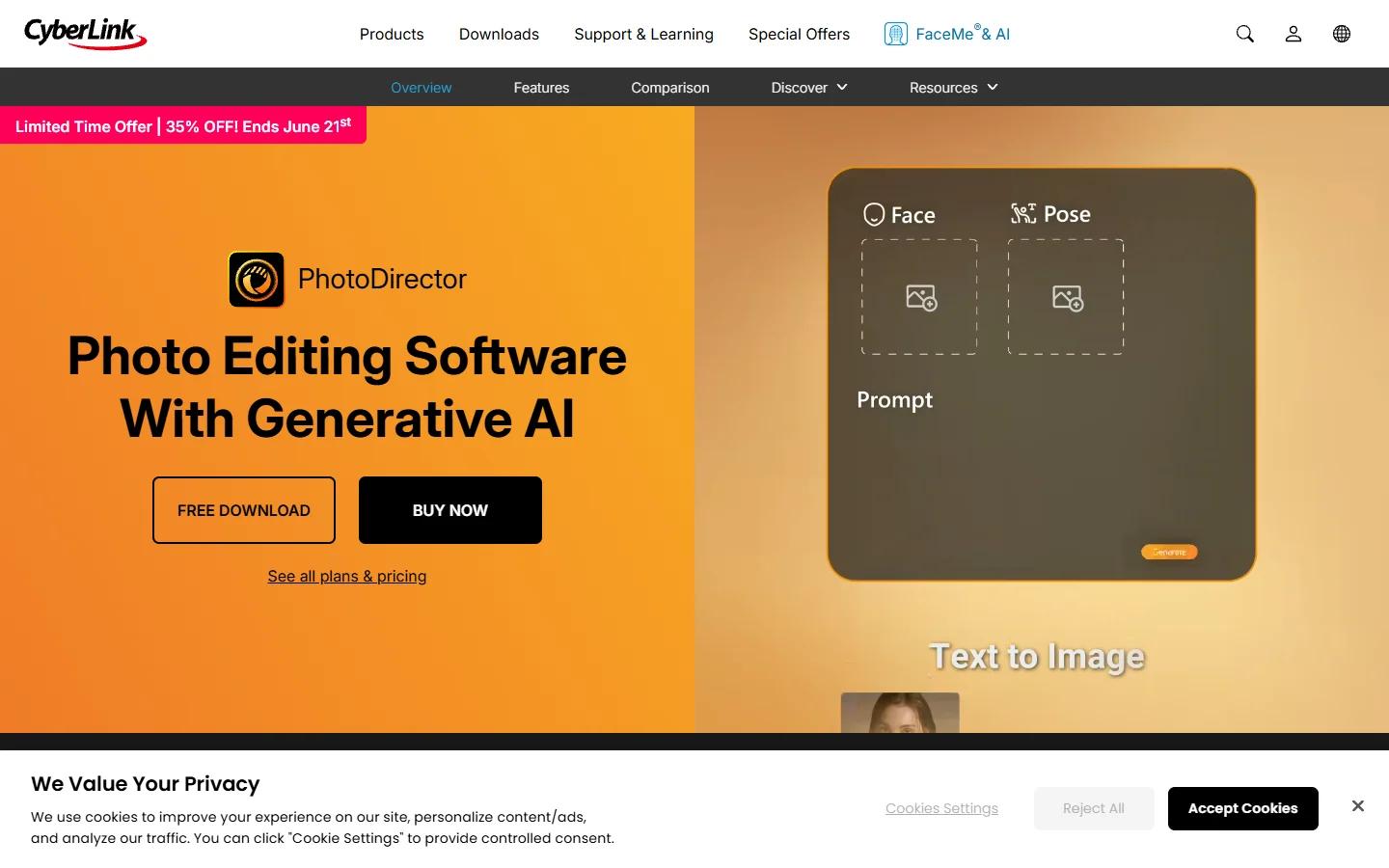
PhotoDirector bundles its cartoon effects inside a full-featured desktop photo editor. You get pencil sketch, watercolor, comic book, and anime styles, all powered by CyberLink's in-house AI models. The processing happens locally on your machine, so there is no upload wait time and no privacy concern about sending photos to a cloud server.
- Strength: Deep editing suite with layers, masks, and color grading alongside the cartoon effects
- Weakness: Desktop-only install, no browser version; the full editor can feel heavy if you only want cartoon effects
- Best for: Photographers and content creators who already use a desktop editor and want photo enhancement alongside cartoon styles
The subscription runs around $4/month billed annually, which is competitive considering the full editing toolkit included. If you are comparing it against free AI image generators, the paid plan's extra depth justifies the cost.
Canva's Photo to Cartoon Feature
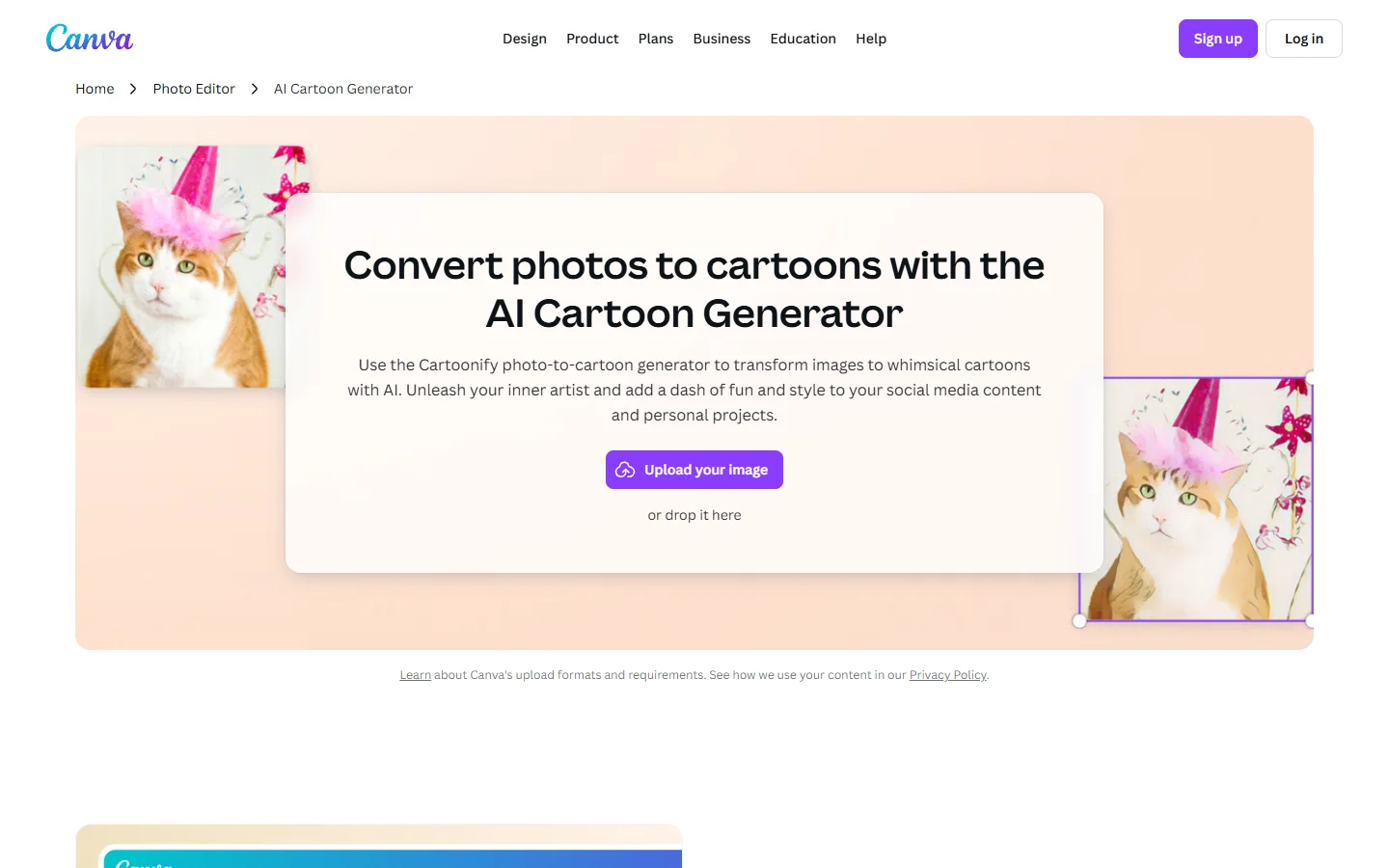
Canva added a dedicated "Cartoonify" option to its image editor in late 2025. Upload any photo, click the effect, and Canva returns a cartoon version within a few seconds. The output leans toward a clean, vector-style illustration that works well for social media posts, presentations, and thumbnails.
The strength here is integration. Once you cartoonize a photo, you can drop it straight into a Canva design template, add text, resize for different platforms, and export. For teams managing social accounts, this integrated workflow removes the friction of switching between apps.
- Strength: Tight design integration, huge template library
- Weakness: Limited style variety compared to dedicated cartoon tools; free tier adds a watermark on some exports
- Best for: Social media managers who want cartoon avatars alongside AI-generated marketing videos
Fotor
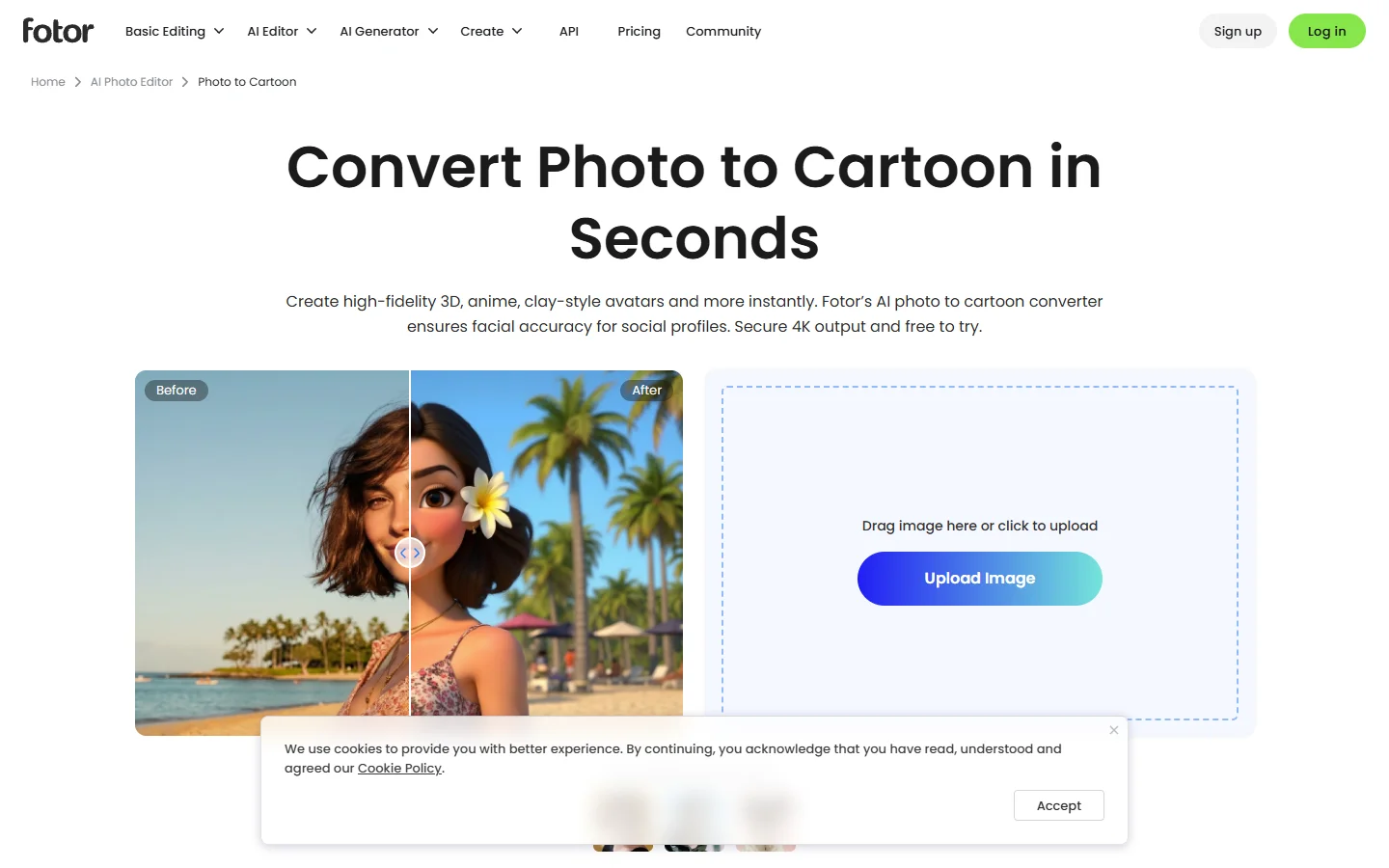
Fotor positions itself as the simplest option on this list. Upload a photo, pick a cartoon style, and download the result. No account required for basic use. The AI handles face detection, edge mapping, and color rebalancing automatically. Results are surprisingly clean for a free tool, though the style options are fewer than what PhotoDirector or Starryai offer.
Fotor also supports batch cartoonizing on its paid plan, which is useful if you need to process a full product catalog or a large set of team headshots. If you have been creating AI avatars for your team already, Fotor's batch mode is a natural extension.
- Strength: No signup barrier, fast processing, batch mode on paid plan
- Weakness: Fewer style options, lower resolution on free exports
- Best for: Quick one-off cartoons, background removal tasks, or batch processing on a budget
Starryai
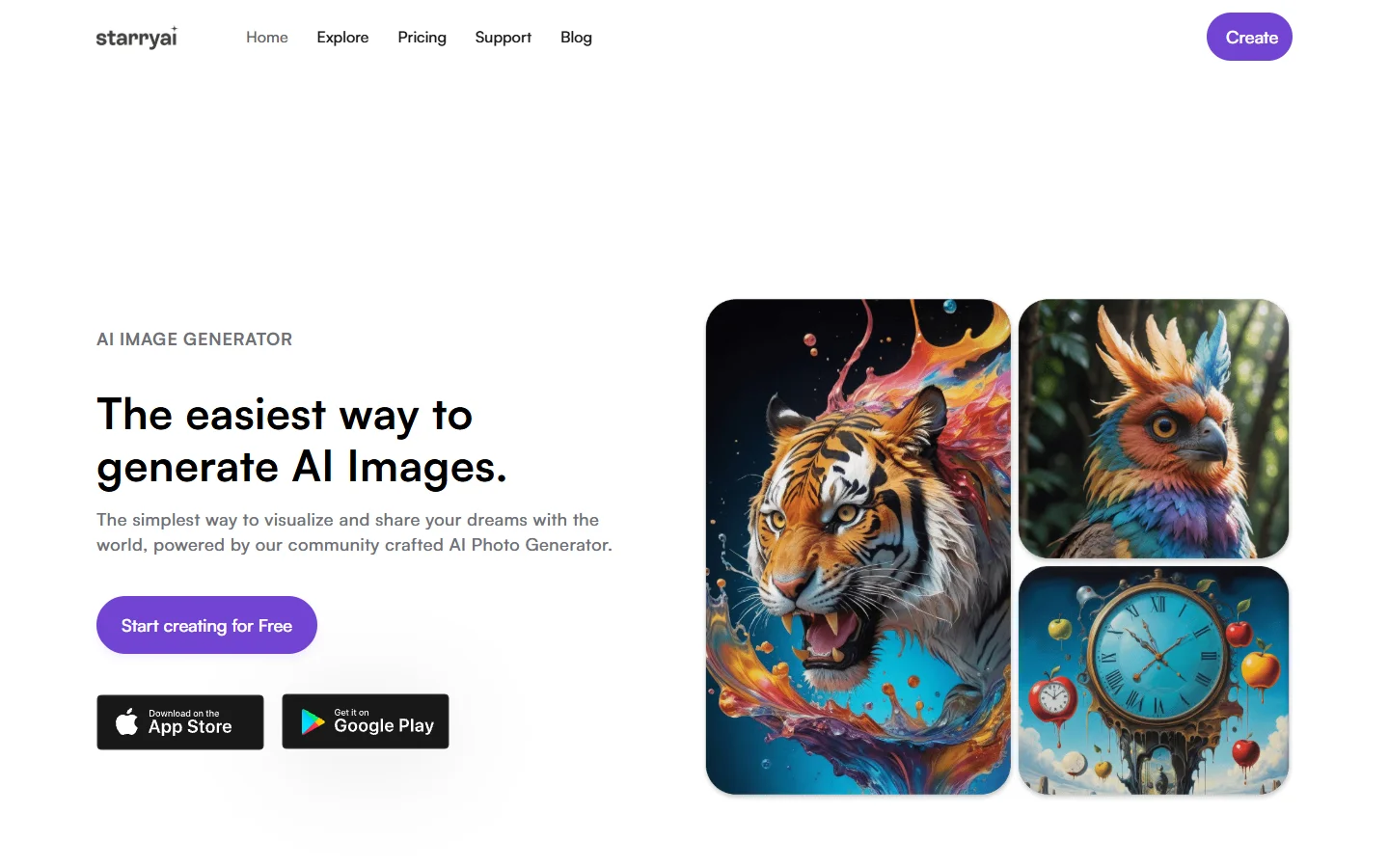
Starryai takes a prompt-based approach. Instead of picking from preset styles, you upload your photo and write a prompt describing the cartoon look you want: "watercolor illustration with thick black outlines," "retro 90s comic book," or "Studio Ghibli inspired." The AI interprets the prompt and applies it as a style transfer on your image.
This gives you far more creative control than one-click tools. The tradeoff is that results vary based on how well you write the prompt, and it can take a few tries to land on exactly the look you want. Starryai offers 5 free credits daily, which is enough to experiment. For teams running AI image generation pipelines at scale, the API access on paid plans makes it possible to automate batch cartoon rendering.
- Strength: Prompt-driven style control, multiple AI models (SDXL, DALL-E 3), API access
- Weakness: Learning curve for prompt writing, inconsistent results on complex scenes
- Best for: Creators who want full control and may also want to turn images into video with the same platform
ToonMe
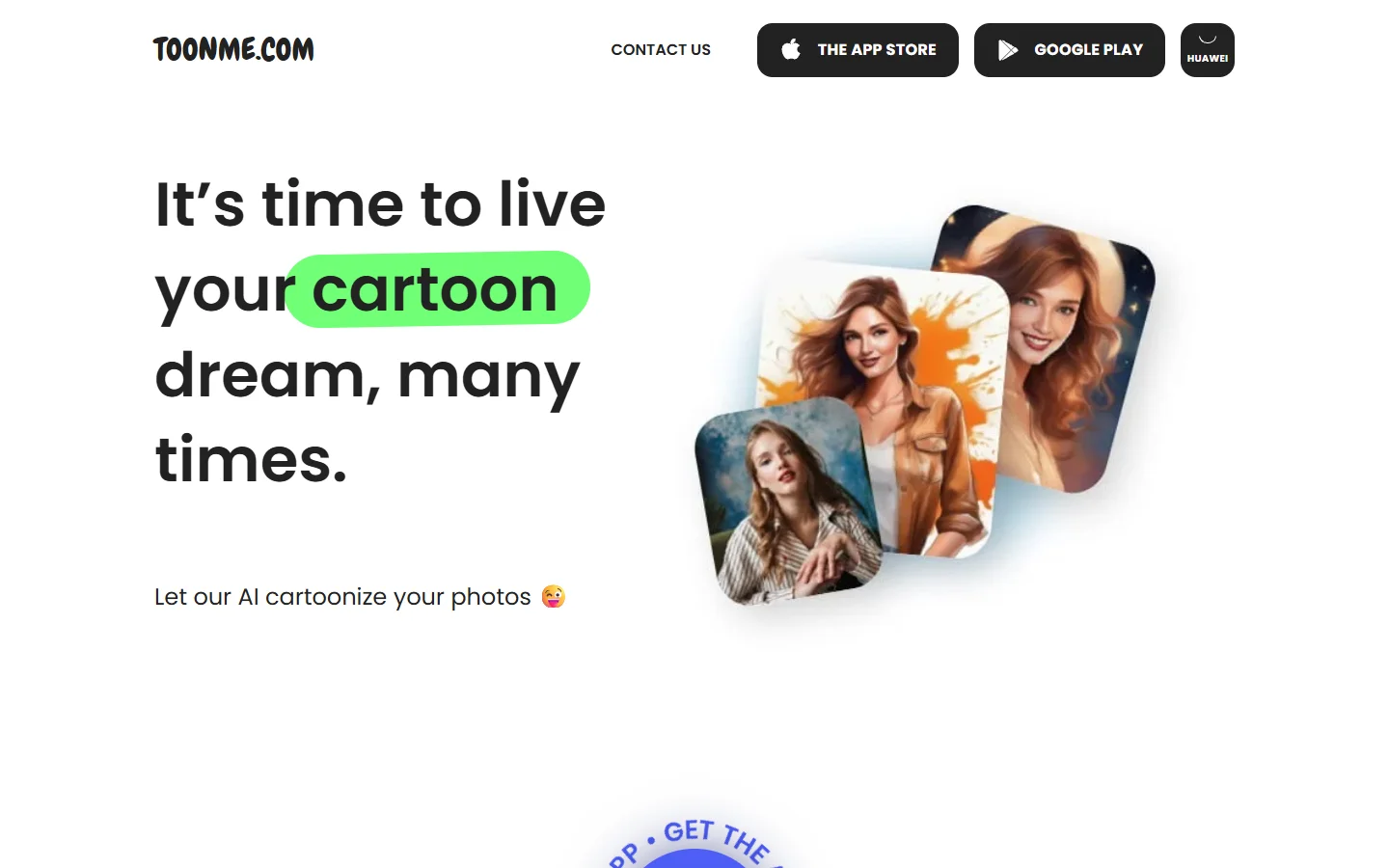
ToonMe went viral as a mobile app and has since expanded to a web version. It specializes in face cartoonization, turning portrait photos into Disney/Pixar-style or vector art characters. The AI is trained specifically on face geometry, so it handles expressions, hair, and accessories well. It struggles more with full-body shots or landscapes.
The app is free with ads, and the pro version ($5/month) removes watermarks and unlocks HD export. ToonMe is best when you need a quick avatar or profile picture in a polished cartoon style.
- Strength: Excellent face detection, polished Disney/Pixar style output
- Weakness: Limited to portraits, weak on non-face content
- Best for: Profile pictures, social media content, and fun personal use
Adobe Firefly
Adobe Firefly's cartoon generator deserves mention even though it operates differently from the tools above. Rather than applying a preset filter, Firefly uses generative AI trained exclusively on Adobe Stock and public domain content. You can upload a reference photo and use style transfer to apply cartoon aesthetics to it, with granular control over color palette, line weight, and abstraction level.
The commercial licensing angle is Firefly's main advantage. Every output is cleared for commercial use with no copyright risk, which matters for brands and agencies. The free AI image generation landscape has plenty of capable tools, but few match Firefly's legal certainty.
- Strength: Commercially safe outputs, deep Adobe ecosystem integration (Photoshop, Illustrator)
- Weakness: Requires Creative Cloud subscription for full access, slower than lightweight tools
- Best for: Agencies producing cartoon content for ad campaigns and commercial distribution
How to Pick the Right Tool
The right choice depends on your workflow:
- For quick social avatars: ToonMe or Fotor. Minimal setup, fast results.
- For design integration: Canva. Cartoon output feeds directly into templates and brand kits.
- For creative control: Starryai. Prompt-driven styles with API access for automation.
- For professional editing: PhotoDirector. Cartoon effects alongside a full photo editing suite.
- For commercial safety: Adobe Firefly. Licensed training data and IP indemnification.
If you plan to use cartoon images as part of a larger creative pipeline, consider how each tool connects to the rest of your stack. Tools with API access or plugin ecosystems save significant time compared to manual upload-download loops. Platforms like Wireflow's creative tools let you chain photo-to-cartoon steps with other transformations in a single automated workflow.
Tips for Better Cartoon Results
Getting the best output from any AI cartoonizer comes down to input quality. Here are a few things that consistently improve results:
- Use well-lit photos. The AI relies on edge detection, and harsh shadows confuse it. Soft, even lighting produces cleaner cartoon lines.
- Crop tightly. If you want a cartoon portrait, crop to the face and shoulders before uploading. Extra background clutter reduces quality.
- Try multiple styles. Most tools offer several preset styles. A photo that looks mediocre in "comic book" might look great in "watercolor" or "vector."
- Upscale first if needed. Low-resolution inputs produce blurry cartoon output. Run your photo through an image enhancement tool before cartoonizing.
Frequently Asked Questions
Is there a completely free AI tool to cartoonize photos?
Yes. Fotor offers free cartoon generation without requiring an account, though output resolution is limited. ToonMe's free tier works well for portraits but includes ads. Starryai gives 5 free credits per day, enough for casual use. For free AI image generation more broadly, several platforms offer generous free tiers.
Can I use AI-cartoonized photos commercially?
It depends on the tool. Adobe Firefly explicitly licenses all outputs for commercial use. Canva Pro also includes commercial rights. Free tools like ToonMe and Fotor often restrict commercial use on their free tiers, so check the terms before publishing cartoonized images in ads or products.
What is the difference between cartoonizing and anime style transfer?
Cartoonizing typically produces bold outlines, flat color fills, and simplified features, like a Western comic book or Pixar character. Anime style transfer applies the visual language of Japanese animation: large eyes, specific shading patterns, and distinctive hair rendering. Many tools support both, but the best anime avatar creators are purpose-built for that style.
Do AI cartoon generators work on group photos?
Most tools handle group photos, but quality varies. Face-focused tools like ToonMe work best on single portraits. Broader tools like Starryai and PhotoDirector handle multi-person scenes more reliably because they process the full image rather than isolating individual faces.
Can I cartoonize video frames with these tools?
Some tools support video input directly. Others require you to extract frames, cartoonize them individually, and reassemble. If you need video cartoon effects at scale, look for tools with API access or batch processing. Converting photos to animated content is a related workflow that several platforms now support natively.
How do AI cartoon generators handle different skin tones?
The better tools in 2026 handle diverse skin tones accurately. Models trained on broad datasets (Firefly, Starryai, PhotoDirector) preserve skin tone in the cartoon output. Older or poorly trained models sometimes flatten skin tones or introduce color casts. If accurate representation matters for your use case, test with a sample photo before committing to a tool. The same principle applies when generating realistic AI faces for other purposes.
What resolution should my input photo be?
Most tools work best with input images of at least 1024x1024 pixels. Higher resolution inputs give the AI more detail to work with, producing sharper cartoon lines and better feature preservation. If your source photo is low-res, run it through an AI headshot tool or upscaler first for better results.