
Your track is finished, the release deadline is close, and you don't have editing software installed. You open a music video maker online, generate an impressive clip, then hit the actual problem: it doesn't fit the chorus, the performer changes between shots, and the lyrics cover the face.
A browser can handle the production. What it can't replace is an editing plan. Use the song's structure as your clock, spend your generation budget on the images listeners should remember, and treat rights and captions as production work rather than cleanup.
Table of Contents
- The Five-Stage Workflow at a Glance
- Plan Shots Around the Song's Structure
- Clearing Rights for Song and Generated Footage
- How revid.ai Can Help
- How to Generate and Edit Clips in the Browser
- Export Versions for Each Platform
- Captions and Lyrics Viewers Can Read Without Sound
- Publish a First Cut and Test the Opening Seconds
The Five-Stage Workflow at a Glance
Work in this order: plan, generate, edit, export, then check and publish. Each stage should produce something you can inspect before spending more time or credits.
For a hypothetical short track, start with a compact set of hero shots rather than generating continuous footage. Hero shots carry the identity of the video: the chorus image, the performer's defining close-up, or the visual change that introduces the bridge. Cutaways connect those moments.
Five stages of an online music video
- Plan — Main job: Map each song section to shots · Output: Shot list with timecodes · Typical time: Until every section has a visual purpose
- Generate — Main job: Create clips for each shot · Output: Clip set with saved prompts and seeds · Typical time: Allow for queues and repeat attempts
- Edit — Main job: Cut to the beat, add lyrics and titles · Output: Locked master cut · Typical time: Reserve the largest hands-on work block
- Export — Main job: Render each aspect ratio · Output: Landscape, vertical, and square files · Typical time: Allow a render and playback check per version
- Check and publish — Main job: Review captions, rights, thumbnail, and upload · Output: Published video and test notes · Typical time: Leave room for corrections after upload
These are workload rules, not turnaround promises. For one person working in a browser, generation queues, clip duration, and rejected outputs can change the schedule substantially.
Chartmetric's Year in Music 2024 report counted 6.7 million videos posted in 2024 by artists tracked in its database. Having a video alone isn't a useful creative distinction. Give viewers an opening they can understand and a chorus image they can recognize.
Practical rule: Don't approve a clip just because it looks impressive. Approve it because it performs a specific job in the song.
Skipping planning leaves you with attractive clips that don't belong together.
Plan Shots Around the Song's Structure
The track sets the clock, not the generator. Write the intro, verses, pre-choruses, choruses, bridge, and outro into a plain text file with their actual timestamps. Then build a shot list with a row for each shot: timecode, subject, camera move, and the lyric or musical event it covers.
Keep that document beside your browser timeline.
Don't force a song into generic runtime percentages. Measure its arrangement, then assign the visual pacing.
Song sections and matching visual approach
- Intro — Share of runtime: Measure from the master audio · Visual approach: Wide establishing image that sets the mood · Average shot length: Hold until the mood registers
- Verse — Share of runtime: Total the verse passages · Visual approach: Performer or story in medium shots · Average shot length: Follow complete lyrical thoughts
- Pre-chorus — Share of runtime: Measure each buildup · Visual approach: More movement and tighter framing · Average shot length: Shorten toward the transition
- Chorus — Share of runtime: Total the chorus passages · Visual approach: Strongest visual hook with a clear subject · Average shot length: Cut around musical accents
- Bridge — Share of runtime: Measure the contrasting passage · Visual approach: Different palette or visual setting · Average shot length: Let the contrast breathe
- Outro — Share of runtime: Measure the closing passage · Visual approach: Callback to the opening image · Average shot length: Hold through the musical resolution
Build the Chorus First
Say you're planning an indie-pop track whose first chorus follows a restrained verse. Give that entrance a decisive change: a solitary performer under a bright overhead light, replacing the softer, wider verse coverage. When the chorus returns, reuse the visual identity without repeating the exact sequence.
For a hypothetical three-minute edit averaging three seconds per shot, the arithmetic gives about sixty shot placements. That doesn't mean generating sixty unrelated scenes. Plan twelve to sixteen hero images, then fill the gaps with details, alternate framings, and purposeful returns.
Mark the hero shots that must land on a vocal entrance. Those are timing commitments; decorative cutaways are flexible. A bridge can change palette and movement, but it should still feel like part of the same release.
Clearing Rights for Song and Generated Footage
Commercial use allowed doesn't mean everything in your video is cleared. A tool's output terms don't automatically cover the song, a sampled recording, a recognizable person, or an imitated voice.
In a 2025 BPI/AudienceNet survey of more than 1,750 UK music consumers, 78.5% believed an artist's music or vocals shouldn't be ingested by AI without permission. That's an audience-attitude finding, not a legal test, but it makes consent an important release decision.
Keep a Release Rights Checklist
- Clear the composition and recording. Confirm ownership or permission for synchronization and the specific master recording. Read the license's distribution and commercial-use terms rather than relying on a royalty-free label.
- Document performer consent. Get written authorization for voices and likenesses, including synthetic alterations. Permission to record someone isn't necessarily permission to generate a new performance.
- Inspect generated footage. Flag recognizable people, logos, packaging, and locations for review. Remove questionable details or obtain appropriate clearance.
- Retain provenance. Save prompts, reference-image permissions, source files, model names, generation dates, and your editing decisions.
- Check disclosure requirements. Review the destination platform's current synthetic-content rules and apply labels where required.
Treat the rights note like an export deliverable, not an email you'll write if someone complains.
If you're choosing an audio-generation workflow, this guide to AI music generators can help frame the tool comparison. It doesn't replace reading the selected service's terms.
Write a short release note identifying who owns the audio, which permissions you hold, and what synthetic material appears. For an uncertain commercial release, get qualified legal advice before distribution.
How revid.ai Can Help
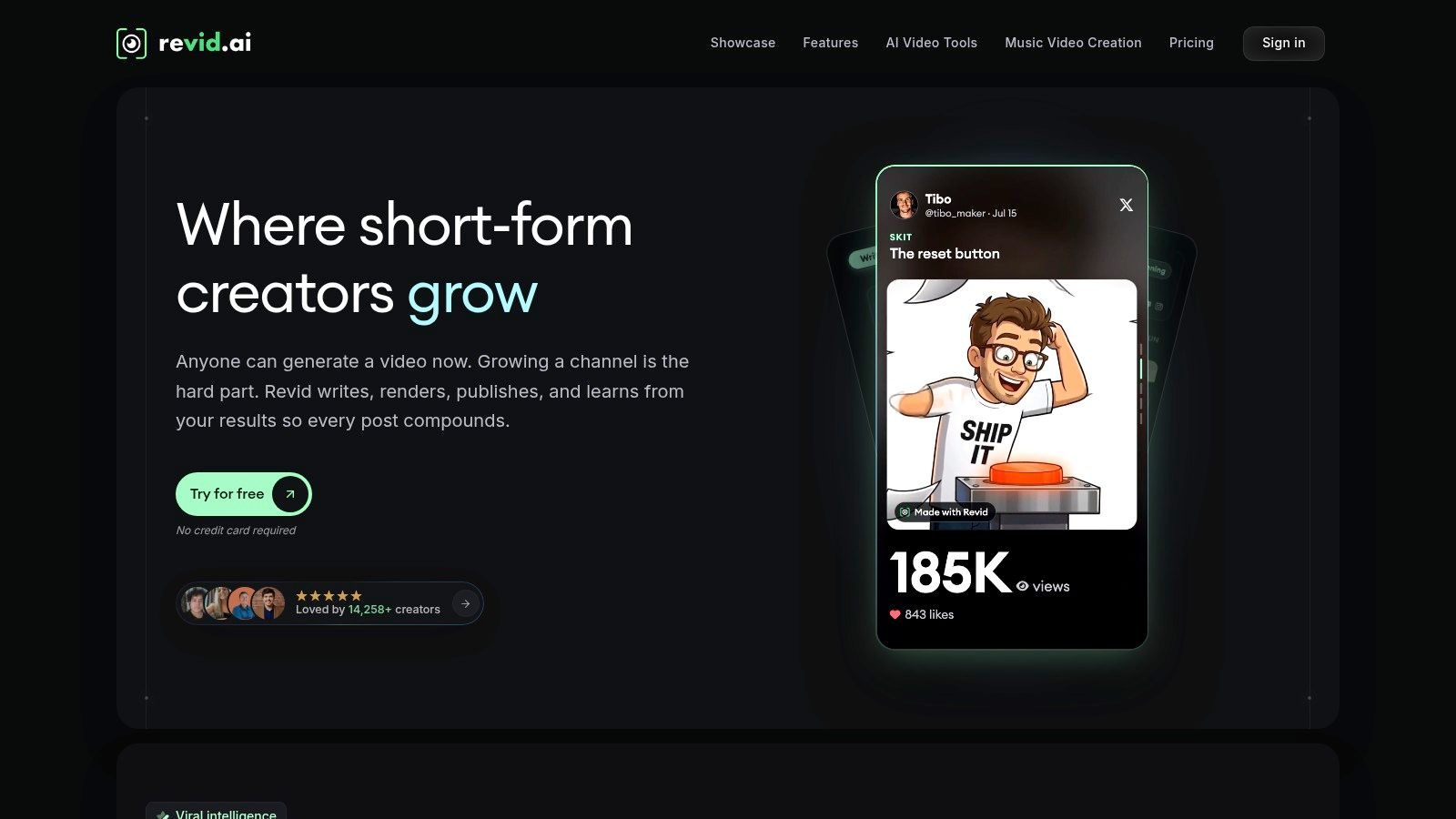
A social-video tool is useful when assembling the promotion takes longer than developing the concept. Revid.ai combines AI-assisted creation, script generation, content-link inputs, and an editor intended for social publishing. For a musician, its practical appeal is turning a release idea into a workable promotional draft without building every element manually.
The interface is worth evaluating against your actual publishing task.
Use It for a Defined Deliverable
- Choose the output before the template. Decide whether you need a chorus teaser, a lyric-led clip, or a release announcement. These need different pacing, even when they use the same track.
- Start with the song's visual brief. For a dedicated starting point, evaluate revid.ai's AI music video generator. Give it a coherent subject and mood rather than a list of unrelated cinematic adjectives.
- Inspect the generated draft in the editor. Check whether scene changes support the arrangement and whether text competes with the performer. Replace weak sections selectively rather than accepting the whole draft.
- Judge the workflow by revision control. Test how comfortably you can adjust timing, replace visuals, and prepare the intended format. A fast first draft isn't enough if small corrections become difficult.
Revid.ai is a sensible candidate for social-first releases, recurring promotional content, and creators who prefer guided assembly. Its content-repurposing features also suit material surrounding a release, such as turning an artist's written explanation into a promotional video.
The trade-off is precision. A narrative performance video with tightly controlled continuity requires more shot-level judgment than a templated promotional cut. Don't assume automatic assembly means musically correct editing, and don't treat viral-first positioning as a promise of reach.
How to Generate and Edit Clips in the Browser
Plan the framing before generation. A performer placed against the edge of a wide image leaves little room for a vertical composition, and a hand moving outside the frame can't be recovered later.
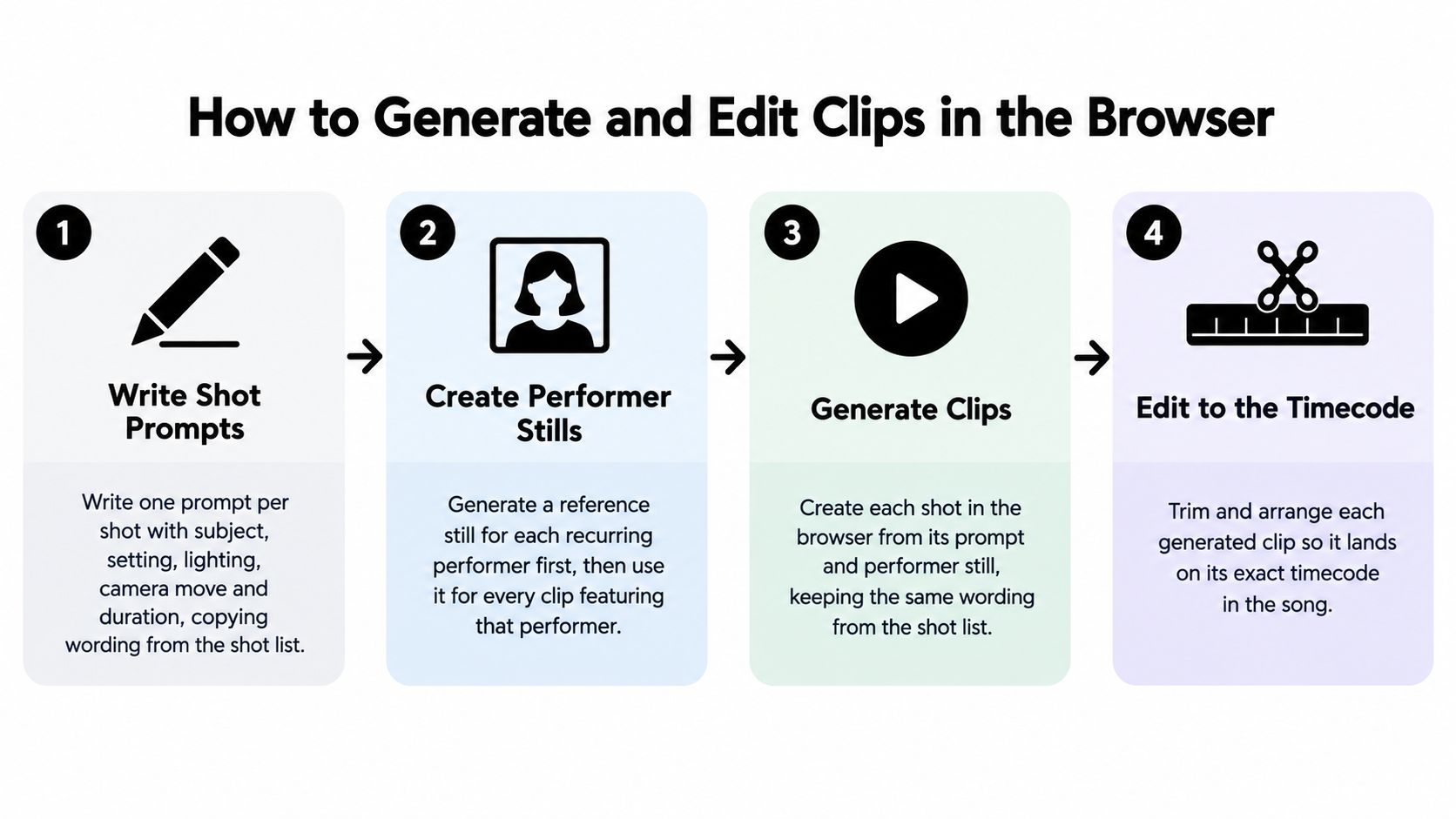
Use this sequence to keep the generation work tied to the edit.
Generate for a Specific Cut
Write a separate prompt for each shot using the subject, setting, lighting, camera movement, and required action from your shot list. Ask for a clear movement rather than several simultaneous events: a slow push toward a stationary performer is easier to evaluate than a circling camera, changing costume, and transforming background.
Create an approved reference still for each recurring performer. Use that image for image-to-video shots where face, wardrobe, and silhouette matter; use text-to-video for atmospheric wides or abstract transitions that don't require precise identity continuity.
- Recurring performer — Useful starting method: Image-to-video from an approved still · Check before keeping it: Face, outfit, hands, and background
- Establishing environment — Useful starting method: Text-to-video · Check before keeping it: Composition and coherent movement
- Chorus accent — Useful starting method: Simple subject with a deliberate action · Check before keeping it: Whether the action has a usable peak
- Transition or texture — Useful starting method: Abstract generation or detail footage · Check before keeping it: Whether it connects adjacent shots
BasedLabs is one browser-based option for accessing models such as Veo and Kling alongside editing tools; choose the model by the shot you need, not by its position in a menu. Compare the displayed generation cost and available controls before committing to a batch.
Expect repeat attempts on hero shots. Keep the take with usable motion and clean anatomy, not merely the prettiest opening frame. Save the prompt, settings, reference image, and seed when exposed, although a seed alone won't guarantee a reproducible result.
For more control over wording, use this hands-on guide to customizing AI video output.
Assemble Against the Audio
Import the final audio first and place markers at section changes and vocal entrances. Trim dead frames from generated clips, then assemble them in shot-list order before adding effects.
Snap selected cuts to kick or snare accents, but don't cut on every beat. Align lyric entrances to the actual vocal, including pickups before the bar line. Match exposure, color temperature, and grain before adding titles.
A convincing cut often comes from removing unusable frames, not adding a transition.
Use the video demonstration as a companion to the browser workflow.
Watch each join at normal playback speed. If the motion clashes, change the cut point or insert a motivated detail shot rather than hiding the problem under a dissolve.
Export Versions for Each Platform
Your audience may encounter the release on a phone before opening the full video. In its November 2020 music-audience report, covered by Music Ally, YouTube said 60% of music-video viewing happened on mobile devices. That historical figure isn't a current platform benchmark, but it supports a practical habit: inspect the mobile composition rather than approving only the desktop timeline.
Export separate compositions, not blind crops. A widescreen arrangement can put the performer and a meaningful prop on opposite sides of the frame. A vertical version needs a different arrangement to preserve both.
Export sizes by platform
- YouTube main video — Aspect ratio: 16:9 · Placement note: Keep the full composition as the landscape master
- YouTube Shorts — Aspect ratio: 9:16 · Placement note: Build a self-contained passage and check current upload limits
- TikTok — Aspect ratio: 9:16 · Placement note: Keep lyrics clear of the bottom interface area
- Instagram Reels — Aspect ratio: 9:16 · Placement note: Preview text against the platform interface
- Instagram feed — Aspect ratio: 4:5 or 1:1 · Placement note: Recompose around tighter performer coverage
Render for the Actual Placement
Choose pixel dimensions that match the canvas rather than stretching a smaller render. A practical widescreen working export is 1920 × 1080; use 1080 × 1920 for vertical and 1080 × 1080 for square. These are production choices, not guarantees about a platform's current requirements.
Use MP4 with H.264 video unless the destination requests something else. Preserve the project's frame rate and listen to the encoded audio for clipping, missing channels, and abrupt endings.
Check thumbnails at small display size. If the performer's expression or title disappears, simplify the image.
If your launch starts with TikTok or Reels, render that vertical composition first so you can catch framing problems early. Choose the launch order from your audience's habits, not an unsupported promise that a particular feed will deliver discovery.
Captions and Lyrics Viewers Can Read Without Sound
Don't publish until the words are readable and correctly timed. A 2025 review of 36 peer-reviewed studies describes the importance of captions for Deaf and hard-of-hearing, neurodivergent, and multilingual viewers. A decorative lyric animation doesn't automatically serve those viewers.
Test Accuracy and Readability Separately
The accuracy test starts after the final audio edit is locked. Generate a word-level transcript, compare it against the master lyrics, and correct names, repeated choruses, ad-libs, and overlapping vocals. Align cues to the audible delivery, then add meaningful non-speech information such as applause.
The readability test happens in the target player. Use sentence case, strong contrast, and restrained line lengths; don't cover mouths or essential action. The W3C captioning guidance identifies synchronized captions for prerecorded media as a WCAG Level A requirement.
- Keep a separate caption track. Export WebVTT where supported so viewers can control captions independently of the picture.
- Prepare translations deliberately. Create a separate subtitle file for each target language and have idioms and lyrical meaning reviewed.
- Use burned-in lyrics selectively. They suit stylized promotional clips, but shouldn't be your only accessible text.
- Describe essential visual information. Consider audio description or a descriptive alternative when a non-verbal sequence carries story information the soundtrack doesn't convey.
For an existing upload, this YouTube transcription guide offers a starting workflow, followed by manual correction.
Finish with a phone check at normal brightness and muted playback. Then listen again while checking synchronization, since the silent test can't reveal timing errors.
Publish a First Cut and Test the Opening Seconds
Publish when the chorus visuals feel intentional, the captions pass inspection, and the rights note is complete. Upload the main version as unlisted first, then watch the processed file on a phone rather than trusting the editor preview.
Test the Hook, Not the Whole Project
- Opening clarity. Can someone identify the subject and visual premise immediately, without waiting through an atmospheric preamble?
- Chorus recognition. Does the defining image remain understandable when displayed at feed size?
If either test fails, make an alternate opening with a different first frame or earlier reveal. Keep the rest of the cut stable so you can judge that change instead of comparing unrelated edits. Avoid spending the remaining generation budget on decorative footage while the opening is unresolved.
Save the approved exports, captions, thumbnail, and rights note together under a clear release name. Record what you changed between versions so the next revision doesn't become a guessing exercise.
Open your finished track, mark its section changes, and choose the chorus image before generating anything else. Build a small test cut around that image, validate it on your phone, then schedule the vertical version for the feed where your intended listeners already spend time.