
You need the words from a YouTube video, but the deadline is already close. Perhaps you're turning a client interview into a blog post, preparing subtitles for a new upload, or trying to find one useful quote without scrubbing through twenty minutes of footage. Retyping everything by hand is slow, while copying YouTube's raw transcript often leaves you with a wall of text that still needs serious editing.
A practical transcribe YouTube video workflow has three stages: get the text out quickly, repair the accuracy and readability problems, then reuse the finished transcript as captions, articles, clips, and search assets. YouTube's own tools are enough for a quick reference, but recurring or high-stakes work benefits from a dedicated transcription workflow.
Table of Contents
- Why Every Creator Needs a YouTube Transcript
- Getting a Transcript Straight From YouTube
- Choosing a Transcription Tool That Fits Your Workflow
- How Scribiz Can Help
- How Accurate Are Auto-Captions Really
- Improving Accuracy Before and After You Transcribe
- Turning Transcripts Into Captions, Content, and SEO Wins
- Your Transcription Workflow at a Glance
Why Every Creator Needs a YouTube Transcript
A transcript changes how you work with video. Instead of treating a recording as something you can only watch from beginning to end, you get a searchable working document. You can find a phrase, check how a product name was spoken, pull a quote for a social post, or identify the section that deserves a short clip.
That matters because YouTube operates at a scale where manual handling quickly becomes impractical. One widely cited benchmark estimates that more than 500 hours of video are uploaded to YouTube every minute, equivalent to about 720,000 hours per day and roughly 262,800,000 hours per year. The figures and their implications for transcription workflows are discussed in YouTube's guide to getting a video transcript. Even a small improvement in how quickly a team extracts and cleans text can matter when creators, publishers, educators, and marketers process video regularly.
Captions also serve viewers who aren't listening aloud. Accessibility guidance cited in the same YouTube transcript resource places muted viewing at up to 85% of content consumption, which makes captions more than an accessibility add-on. People watch on phones in public places, in shared rooms, during commutes, and in environments where sound isn't practical.
The transcript is a publishing layer
For a creator, one video can produce several useful assets:
- Searchable research: Find exact phrases, topics, and recurring questions without repeatedly scanning the timeline.
- Accessible viewing: Give viewers a text layer when audio isn't available or easy to understand.
- Editorial material: Turn spoken explanations into an article, newsletter, show notes, or course notes.
- Production inputs: Use timestamps and cleaned dialogue to identify clips, chapters, and subtitle segments.
The route you choose depends on the job. YouTube's built-in panel is the fastest option when captions exist. A browser-based extractor or transcription service is more useful when you need downloads, cleaner formatting, or transcription without a usable caption track. A recurring production workflow should also include a review pass, because raw automatic text is rarely ready to publish as-is.
Getting a Transcript Straight From YouTube
YouTube's built-in transcript is the quickest place to start, and it costs nothing to access. On a desktop browser, open the video, expand the description beneath the player, and look for the transcript option. Select Show transcript, then use the panel to search for a phrase or jump to a timestamp.
The panel usually displays the spoken text alongside time markers. Open the panel's options menu to turn timestamps off when you want cleaner copy. You can then select the text, copy it, and paste it into a document for editing. The process is convenient for checking a quote or making rough notes, but YouTube doesn't give you a polished document with reliable paragraphs, speaker labels, or editorial formatting.
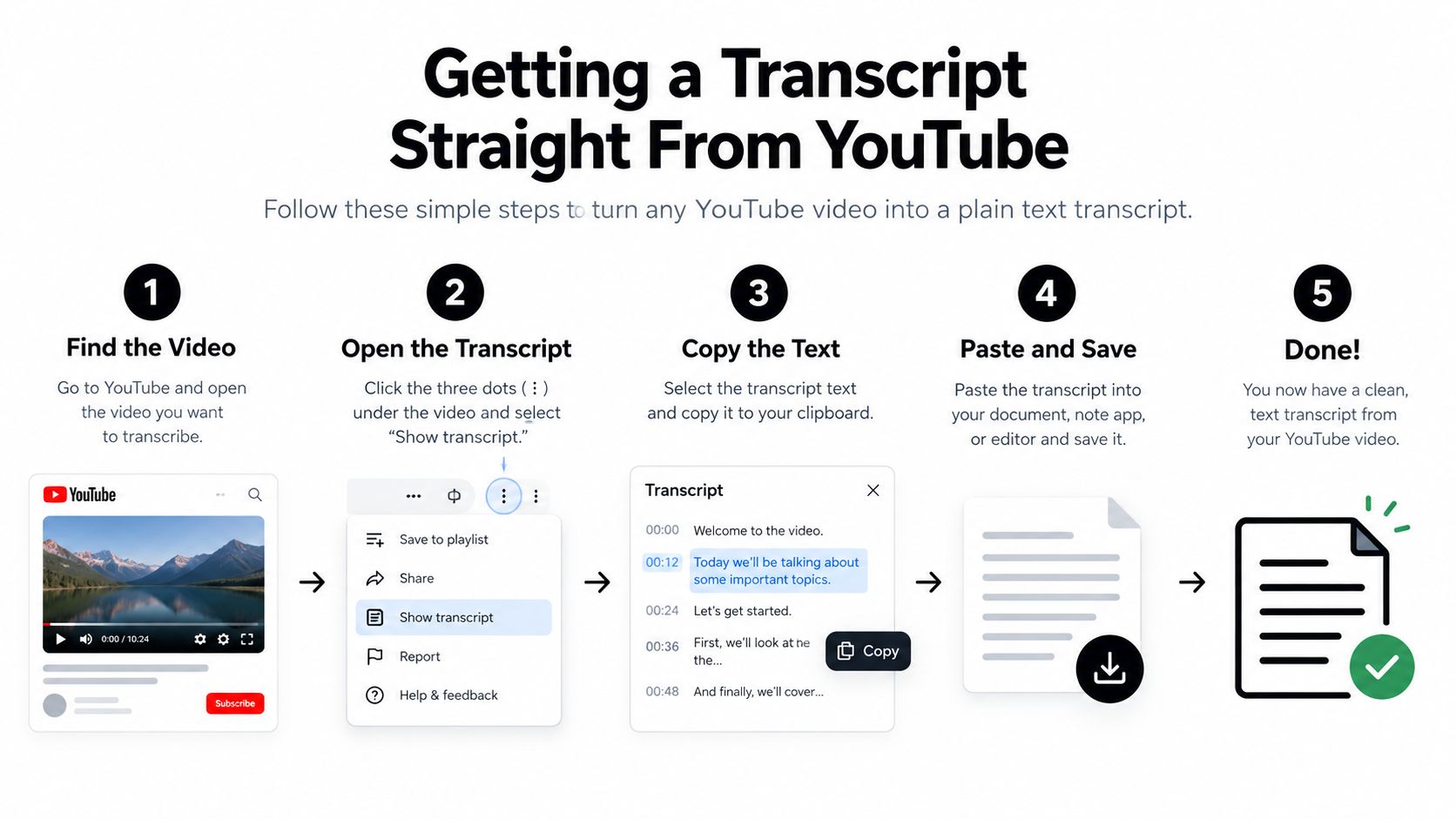
On mobile, open the video in the YouTube app, expand the description, and look for the transcript area. If it's available, open it beneath the video and use the transcript to move to a moment in the recording. Copying long passages on a phone is less comfortable, so mobile access works best for finding a short passage or checking a section before moving the work to a larger screen. Tactiq's YouTube transcript guide also highlights the practical limitation that transcript access varies by video and that users often have to copy text manually.
Download captions for videos you own
If the video belongs to your channel, YouTube Studio gives you a more useful route. Open the video's subtitle or caption settings, choose the relevant language track, and download the available caption file when the option appears. A caption file preserves timing, which makes it more useful for subtitle editing than plain copied text.
The exact menu labels can change as YouTube updates Studio, but the principle stays the same. Use the public transcript panel for quick text access, and use Studio when you need a caption file connected to your own upload.
When the transcript button is missing
Check these common causes before assuming the video cannot be transcribed:
- Captions aren't available: The video may have no generated or uploaded caption track.
- The language is wrong: YouTube may have selected a different caption language from the one you expected.
- The audio is difficult: Music, heavy background noise, overlapping speakers, or very quiet speech can prevent a useful transcript.
- The interface has changed: Expand the full description and check the options around the player rather than relying on an older tutorial.
- You need a downloadable file: The built-in panel may only support manual copying, so use a dedicated transcription tool when you need SRT, VTT, TXT, or another export.
If you want to see the workflow in context, this video gives a visual demonstration:
Choosing a Transcription Tool That Fits Your Workflow
Once YouTube's panel becomes restrictive, the choice usually comes down to three categories: copy-paste extractors, browser extensions, and dedicated transcription tools. They can all produce text, but they don't solve the same problem.
A copy-paste extractor is appropriate when you need a short passage immediately and the video already has captions. Browser extensions reduce tab switching and may add search or export controls, but they introduce another layer of browser permissions and may still depend on the underlying caption track. Dedicated AI transcription tools process the audio itself or offer richer editing, so they're better suited to videos without captions, interviews, technical explanations, and repeatable publishing workflows.
- YouTube transcript panel — Speed: Very fast when available · Accuracy: Depends on the caption track and audio · Cost: Free · Best For: Quick notes and quote-finding
- Browser extension — Speed: Fast inside the viewing workflow · Accuracy: Usually inherits or lightly processes available captions · Cost: Free or paid, depending on the extension · Best For: Frequent browser-based access
- URL transcript extractor — Speed: Fast for supported public links · Accuracy: Varies by whether it extracts captions or listens to audio · Cost: Often free or usage-based · Best For: Downloading text from occasional videos
- Dedicated AI transcription tool — Speed: Fast to moderate, depending on media length and processing · Accuracy: Better control over punctuation, speakers, and language · Cost: Usually usage-based or subscription · Best For: Publishing, interviews, and recurring work
- Manual transcription — Speed: Slowest · Accuracy: Controlled by the person editing it · Cost: Time cost, even when software is free · Best For: Short, sensitive, or unusually difficult passages
Match the tool to the output
Before choosing, answer four questions:
- Do you need the words or a production file? Plain text is enough for research. SRT or VTT is better for timed captions.
- Does the video have a dependable caption track? If not, choose a service that transcribes the audio rather than merely extracting existing captions.
- Are there multiple speakers? Speaker labels can save substantial editing time in interviews and panel discussions.
- Will you repeat the process? A recurring workflow justifies saved presets, exports, searchable projects, and integrations.
Mobile use deserves separate consideration. Many guides still assume you'll paste a YouTube link into a desktop web tool, copy the result, and move it into another application. That works, but it becomes awkward when you're reviewing a video on your phone, looking for a clip, or preparing a summary between meetings. A phone-first workflow should let you access the text, jump to timestamps, and export or share the result without repeated browser tab switching.
For creators who want transcription alongside browser-based video editing, BasedLabs' video-to-text tool is one option to evaluate. It fits a broader production stack where transcript text can support editing and subtitle creation, rather than leaving transcription as an isolated document step. Check the current feature set and usage terms before building a production process around any service.
Paid transcription becomes worthwhile when the saved review time matters more than the free access. It's especially useful when you need clean exports, captions without an existing track, speaker separation, multilingual handling, or a repeatable path from video to published content. It isn't automatically better, though. You still need to test difficult audio, proper nouns, and your target language before trusting the output at scale.
How Scribiz Can Help
Scribiz is designed for people who need more than a copied caption track. It can accept a YouTube link or an uploaded file, listen to the audio when captions are absent or poor, and return transcript formats such as SRT, VTT, TXT, Markdown, and JSON. That makes it useful for both editorial reading and downstream subtitle or automation workflows.
The distinction matters when the video includes information that speech alone doesn't capture. Scribiz can read on-screen text such as slides, code, and other visible content, attach notes to timestamps, and create summaries and chapter lists that point back to relevant moments. For an interview or recording with multiple people, speaker labeling can reduce the time spent separating dialogue manually. It's optimized for recordings with two distinct voices, so complex panels still deserve careful testing.
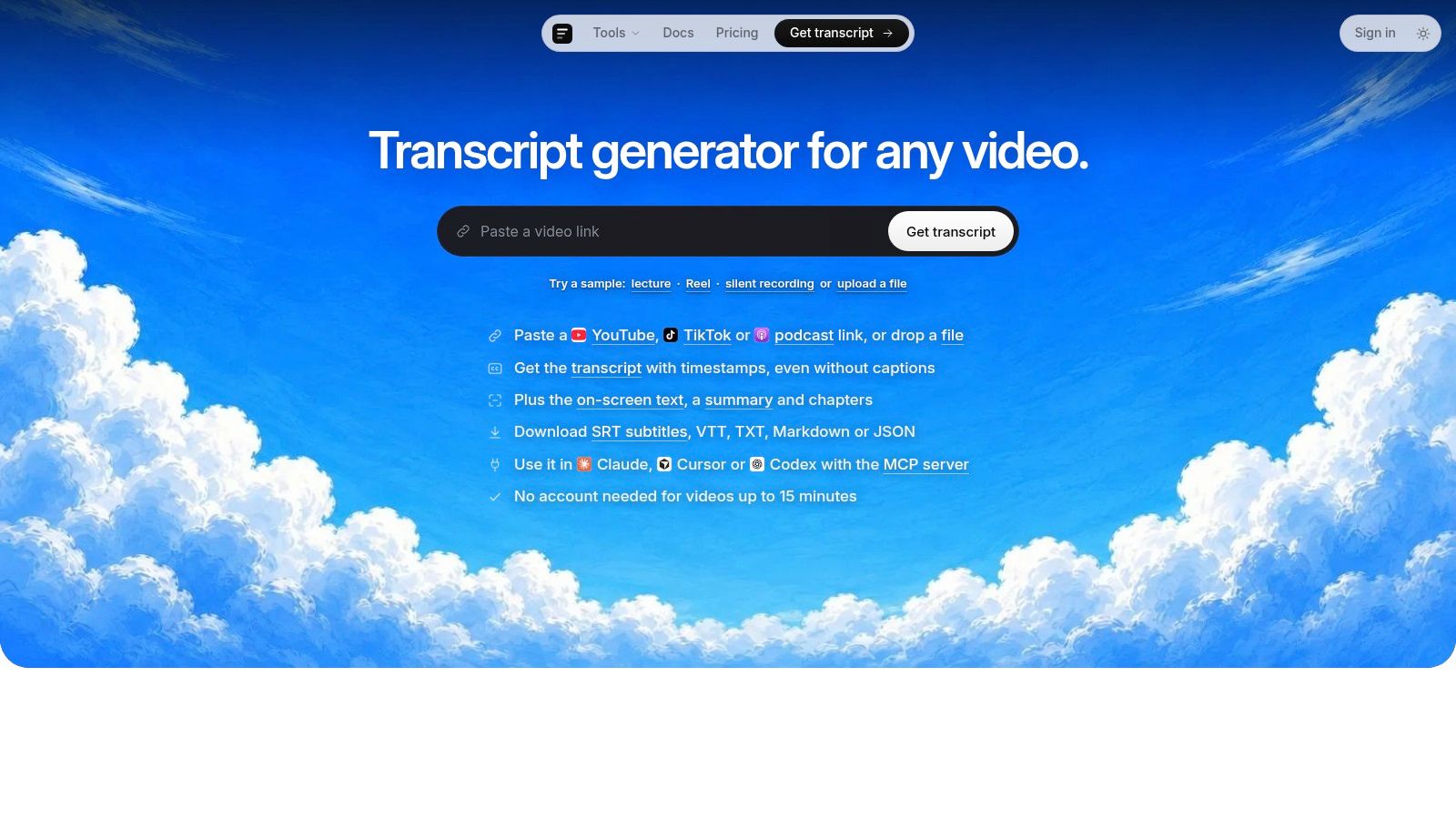
A useful starting point is Transcribe YouTube videos with Scribiz, particularly if your immediate problem is a video without captions or a transcript that needs more structure than YouTube provides. Its Auto, Listen, Watch, and Both modes let you choose whether the job should focus on speech, visual content, or both. The service also offers a Mac app, API, CLI, and MCP server, which gives teams a route from occasional manual work to scripted or agent-assisted processing.
Scribiz is a good fit when you need structured outputs, timestamped summaries, on-screen text recognition, or a way to process YouTube, podcast, direct media, and uploaded sources in one workflow. It's less compelling if all you need is a quick quote from a video that already has a readable transcript. In that case, YouTube's own panel is simpler and avoids an extra processing step.
How Accurate Are Auto-Captions Really
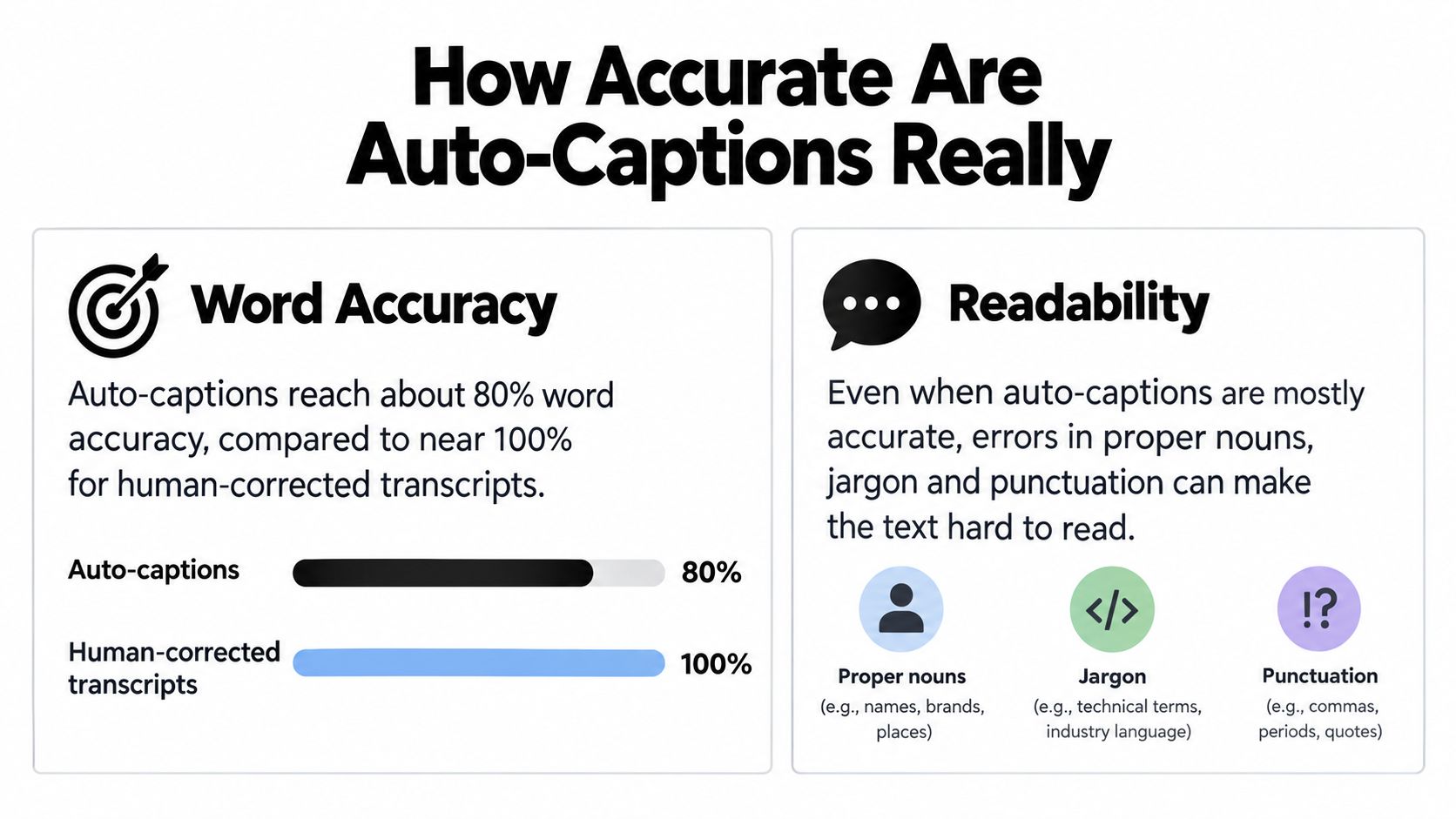
A transcript can contain most of a video's spoken words and still be hard to publish. Accuracy measures whether the words are correct. Readability covers punctuation, sentence breaks, speaker identification, and whether names appear correctly. YouTube auto-captions often get close on ordinary speech, then become unreliable around jargon, proper nouns, and overlapping voices.
A study of 264 videos and 997,401 words compared YouTube's auto-captions with human-corrected transcripts. It reported a median Word Error Rate, or WER, of 9.9%, meaning approximately 90% of words were correct in that sample. The same study found that 20% of captions had no sentence-ending punctuation and 32% had no commas. Those findings separate speech recognition from editorial quality. The methodology and results appear in the comparison of YouTube auto-captions and AI transcription.
WER is useful, but incomplete
WER counts insertions, deletions, and substitutions against a corrected reference transcript. A missing word, an extra word, or a misheard product name each count as an error. The measure helps compare transcription outputs, but it cannot tell you whether the result works as a blog draft, subtitle file, or set of readable notes.
Reported accuracy varies with the recording. Independent accessibility guidance places YouTube automatic caption accuracy at roughly 50% to 80%, while other real-world summaries put many results around 60% to 70%, as described in background on YouTube caption quality and its development. Accents, speaking speed, background noise, room echo, overlapping voices, and technical vocabulary can shift a transcript from usable to unreliable. A clear interview may need light editing. A fast panel discussion may need a full listen-through.
Practical rule: Treat auto-captions as a draft whenever the text will be published, used for accessibility, or relied on for technical information.
Edit in an order that protects meaning first. Repair sentence boundaries by adding periods, question marks, and paragraph breaks where the speaker changes thought. Check names, brands, products, places, and specialist terms against the video or a reliable reference. Add speaker labels to interviews, podcasts, meetings, and dialogue-heavy recordings. Re-listen to numbers, URLs, quotations, instructions, and claims that could change the meaning. Then read for flow and remove obvious transcription artifacts without changing the speaker's voice.
The goal is faithful, navigable text that can move into captions, articles, and search-focused content without carrying obvious recognition errors into every format.
For recorded video, the same judgment applies to this review of live translation and conversation workflows. Automation gets the first text out quickly. Human review makes that text dependable enough to reuse.
Improving Accuracy Before and After You Transcribe
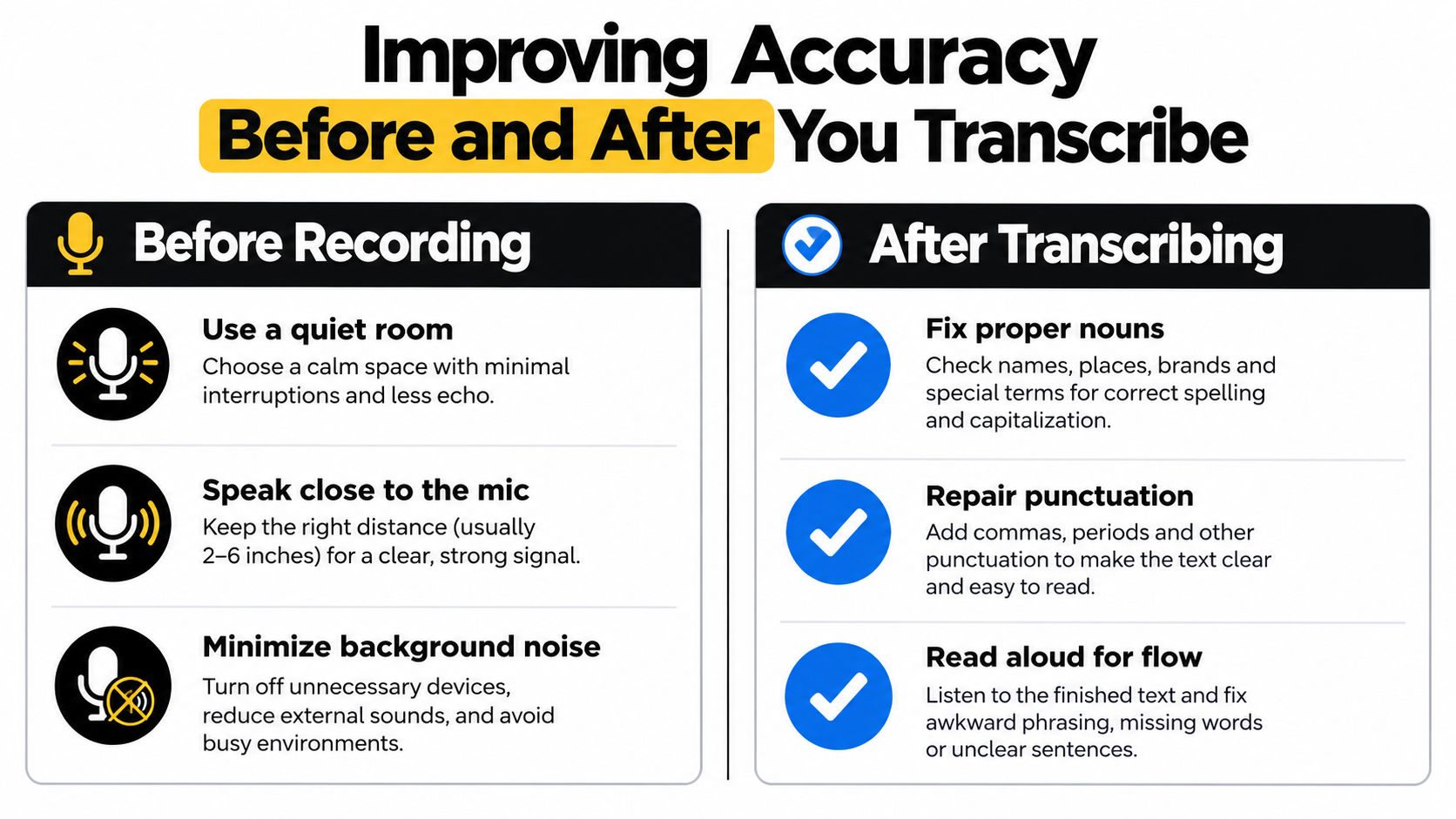
A noisy recording can turn a quick YouTube transcription into a long correction job. Start with the audio, because speech recognition cannot reliably recover words buried under room echo, music, keyboard noise, or a distant microphone. You don't need a studio setup, but you do need a clear signal.
Keep the microphone at a consistent distance, speak toward it, and avoid turning away mid-sentence. If two people are recording, leave a short pause between turns rather than talking over each other. Those pauses make speaker changes easier to identify and give the software cleaner audio to process.
Match the review to the intended use
A transcript for personal notes can tolerate a few rough edges. Captions, published articles, accessibility text, and technical instructions need closer checking. Set the correct language before processing, and add terminology or vocabulary hints if the tool supports them. This small setup step can prevent repeated errors in names, product terms, and specialist language.
After transcription, flag anything uncertain instead of guessing from context. Replay difficult passages at a slower speed, then verify names, homophones, numbers, URLs, and technical terms against the recording or a reliable reference. For interviews, podcasts, meetings, and other dialogue-heavy videos, identify speakers before the text moves into another format.
Review the transcript in two different modes. First, check whether the words are accurate. Then check whether the document is usable. Add punctuation, split dense blocks into logical paragraphs, preserve timestamps for captions or chapters, and read selected passages aloud. Spoken phrasing often exposes missing words and awkward joins that silent proofreading misses.
A practical checkpoint before publishing is to compare the final captions with the finished video, especially after cuts, reshoots, or changes to the edit. A transcript can look complete while small substitutions or missing punctuation alter its meaning.
Accuracy comes from the whole pipeline: a clean recording, suitable processing settings, and deliberate review. Treat the automated output as working text until it has passed the checks required by its final use.
Turning Transcripts Into Captions, Content, and SEO Wins
A transcript becomes valuable when it leaves the document and enters the publishing workflow. Start with the version that preserves timestamps, then create separate outputs for captions, editorial copy, and search planning. Don't use one raw file for every purpose.
For captions, keep the timing intact and check that each segment is easy to read alongside the video. For an article, remove conversational repetition, reorganize the material around reader questions, and add context that was obvious in the spoken presentation but isn't obvious on the page. For show notes or a newsletter, keep the structure lighter and link each important section to its video timestamp.
A practical weekly repurposing sequence
- Clean the master transcript: Correct names, punctuation, speakers, and uncertain passages.
- Create the caption file: Export or format the timed version for the video platform.
- Draft the main article: Use the transcript as source material, not as a finished article. Add headings, examples, and a clear search intent.
- Extract short-form moments: Mark concise explanations, useful contrasts, and complete ideas that can stand alone in clips.
- Build search assets: Pull recurring audience language into the title, description, chapter names, image text, and internal linking plan.
- Archive the source: Keep the cleaned transcript with the video project so future updates don't require starting from the raw audio.
This workflow lets one recording support the video itself, an article, social clips, and email or community content. It also creates a reliable reference when someone asks where a claim or explanation appears in the original recording.
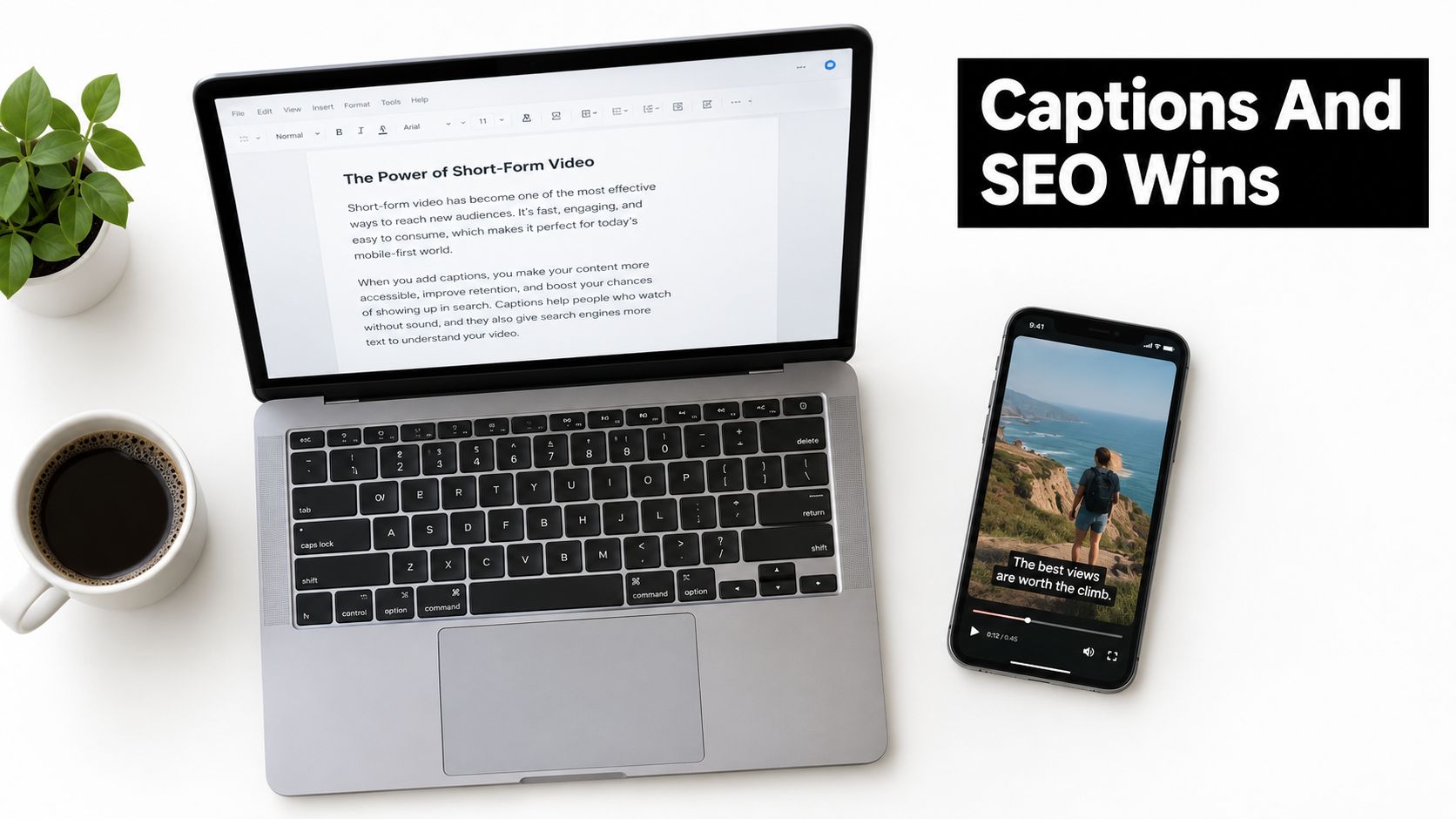
Browser-based production tools can help when the next step is turning transcript-led ideas into edited social video. For a broader view of how visual assets can support discoverability, this guide to AI-generated visuals and SEO content is useful, but the transcript remains the source of truth for spoken claims and captions.
Use this decision checklist today:
- Need a quote or quick note: Open YouTube's transcript panel.
- Need a downloadable caption or document: Use a tool that exports the format you need.
- Need dependable publishing copy: Transcribe, edit, then verify names and sensitive details.
- Need multiple content assets: Preserve timestamps and build every derivative from the cleaned master.
Your Transcription Workflow at a Glance
For a one-off task, start with YouTube's transcript panel. It's quick, free, and sufficient for searching a video or copying a short passage when captions are available.
For recurring work, videos without captions, interviews, or content that will be published elsewhere, use a dedicated transcription tool. Choose exports based on the destination, then budget time for punctuation, speaker labels, proper nouns, and any uncertain wording.
Every video intended for a broad audience should have captions checked against the final edit. Automation can produce the draft, but it can't reliably judge whether a brand name, technical phrase, or number is correct in context.
Build three habits: save a clean master transcript, preserve timestamps, and re-listen to anything that affects meaning. Once those habits are routine, learn subtitle formatting and chapter creation next. They turn a block of extracted text into a navigation and accessibility layer viewers can actually use.
Choose one recent video today and run the smallest workflow that matches your goal. If you only need a reference, copy the YouTube transcript. If you plan to publish captions, an article, or clips, create a cleaned master file, verify the difficult passages, and use that file as the source for every derivative asset.