
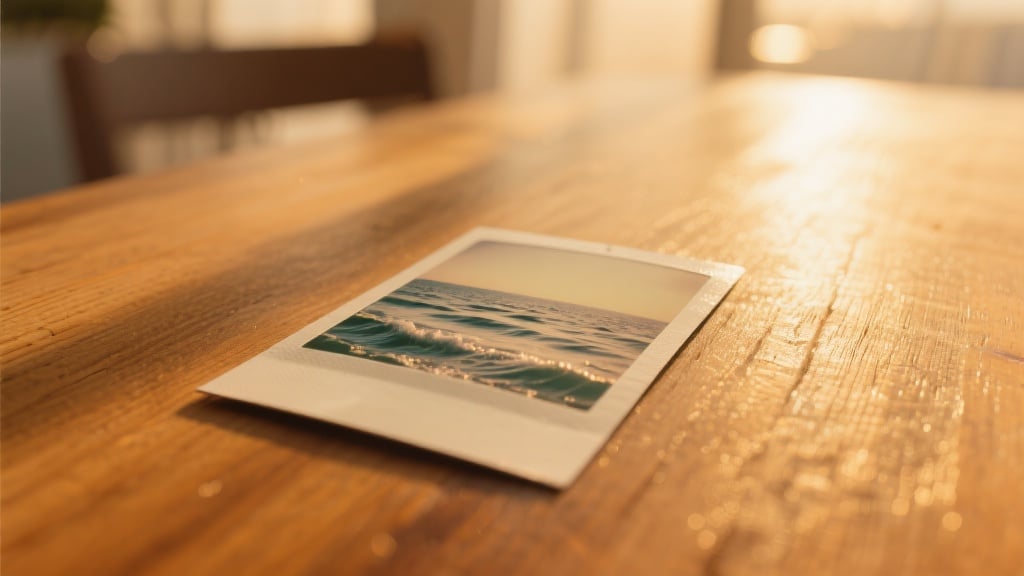
Turn a single PNG or JPEG into a motion clip in seconds. Add camera moves, depth, and music, then export in any social format or even back to Live Photo.
How to use the Photo‑to‑Video tool
STEP 1 Upload the still frame
Save the key frame from your Live Photo as a PNG or JPEG and drag it into the uploader. If you do not have a Live Photo, any regular image works.
STEP 2 Describe the motion
Pick a video model such as Seedance 1 0, then type a prompt like “slow zoom, sunrise haze, soft piano.” The ai photo to video generator reads depth, builds new frames, and layers matching audio.
STEP 3 Generate and download
Click Generate. Preview the 720 p draft, refine if needed, then download the MP4. Higher resolutions are available when you are ready to publish.
Why creators love Photo‑to‑Video
- Breathe life into every still
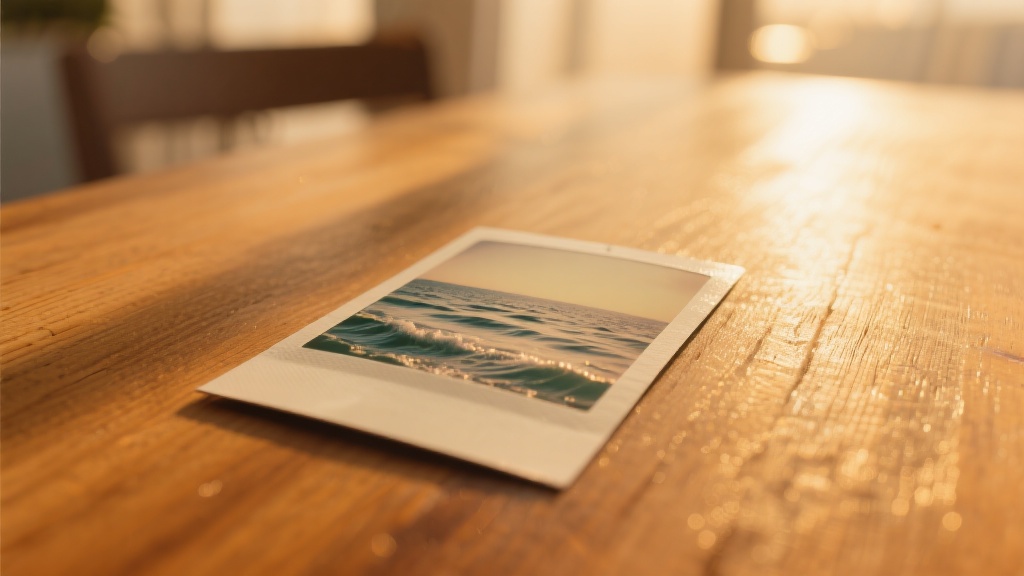
Upload once and the engine animates clouds, water, or city lights so even a routine snapshot becomes a living memory. The live photo to video workflow means iPhone shots finally play on every platform, and the core service remains photo to video ai free for short drafts.
- One hub for every export
After generation you can loop a segment, grade colours, or move straight into vertical reels. A single click opens the clip in the Best Photo To Video interface again for additional tweaks without re‑uploading, keeping quality intact.
- Direct pipeline to short‑form formats
Need 9 × 16 reels? Send the file to the YouTube Shorts Generator from Text where trending audio and auto captions are added automatically. No extra cropping or encoding, so turnaround stays under two minutes.
- Cinematic colour on demand
Swap the base model for Seedance 1 0 to add film‑grain bloom or teal‑orange grading. If you want edgier glitch accents, pass the clip through Wan 2.1 AI Video for motion‑aware overlays that respect the original timing.
- Scales with the complete video suite
When you need longer edits, drop the animated still into BasedLabs AI Video, splice multiple clips, and finish with voice‑over and subtitles. Because all tools share the same frame grid, transitions stay perfectly smooth from upload to final render.
Frequently asked questions
What is the Photo‑to‑Video tool? It is an AI engine that converts a single PNG or JPEG into a fully animated MP4, adding depth, camera movement, and an optional soundtrack.
How do I make a video a live photo? Generate your clip, choose “Live Photo” in the export menu, and the tool packs the motion into Apple’s MOV + JPEG pair for wallpaper use.
Is the service really photo to video ai free? Yes. The starter tier allows several 720 p drafts at no cost; higher resolutions and longer clips require a paid plan.
Can I add custom music? Type a vibe like “lo‑fi jazz” in your prompt or paste a link to a royalty‑free track, and the generator syncs the animation to the beat.
What models are available? The core Photo‑to‑Video model for neutral grading, Seedance 1 0 for cinematic colour, and Wan 2.1 overlays for glitch effects.
How to make a video a live photo on mobile? Export the MP4, reopen it in Photo‑to‑Video, and select the Live Photo option; the AI compresses motion to Apple’s format with preserved colour.
Does it support portrait animation? Yes. Faces receive subtle breathing and hair drift while backgrounds move in parallax, producing a realistic talking‑portrait effect.
Can I convert video to live photo after editing? Absolutely. Any finished MP4 can be re‑exported as a Live Photo, perfect for animated lock‑screen wallpapers or dynamic contact posters.