
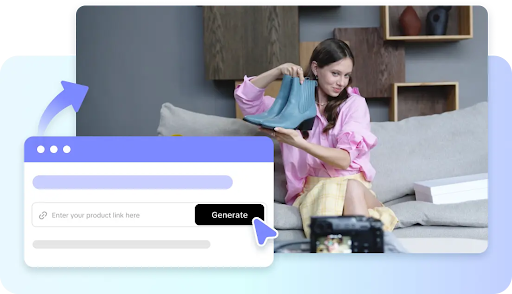
Reversing footage alters the perception of motion by the viewer without the need for another recording. Ordinary actions can be used as reveals, loops, transitions, or even visual surprises when done in a simple backward sequence. Pippit offers AI-driven video generation along with user-friendly editing features to perfect the created content. This workflow allows you to build up a sequence and invert selected moments during the refinement process.
What Reversing a Video Actually Changes
The footage is played in reverse, which means that the frames in the footage remain the same, but the direction of playback is reversed. Someone walking forward looks as if they are going backwards, and objects falling look as if they are rising. This change can change the way a scene looks, as well as the cause and effect. An object that is put out of a hand may seem to move back towards it after reversal. Reversal doesn't cut footage, take out frames, adjust the speed, or generate visual content. Duration of playback is altered by speed, and what is cut alters what is included in the sequence. Regeneration produces different source content, rather than reordering of the already existing frames. Audio should be addressed separately, as when adding speech and sounds, they also get reversed. Muting and adding appropriate music to the audio for many edits is a better solution. Pippit's AI video generator can generate source footage prior to the reversal process.
Creative Uses for Reversed Footage in AI-Assisted Videos
Reversed motion is most helpful when it is intentional and not random to support a visual idea. Pippit can be used to create source scenes which can be selectively reverse-treated to subsequent scenes. When available on the platform, the Seedance 2.5 model can be used for another generation.
Here are some real-life examples:
-
Put in unusual transitions with reversed movement between visually related scenes.
-
Reverse a short action to produce reveals, returns, or surprising visual effects.
-
Use short reversed moments for more visual disruption in short-form social videos.
-
Create rhythmic patterns by alternating forward/reverse clips around music beats.
-
Reverse only meaningful moves to avoid repeated effects becoming weaker.
-
Correlate cuts, gestures, movement of objects, or direction of the camera with reversal points.
Steps to Learn to Reverse Footage Fast With Pippit's AI Video Generator Today
Step 1: Prepare Your Footage
-
Sign up for Pippit using your Google, TikTok, or Facebook account information.
-
Open "More" from the left vertical menu bar and select "Video generator".
-
Choose an AI model, such as Dreamina Seedance 1.0, Dreamina Seedance 2.0, Dreamina Seedance 2.0 Fast, Dreamina Seedance 2.0 Mini, or Dreamina Seedance 2.5.
-
Enter a detailed prompt describing the video and desired footage style.
-
Select the video length, language, subtitles, and aspect ratio.
-
Click "+" to upload reference images or videos from your device, phone, Dropbox, or a link. You can also select assets.
-
Click "Generate" after adding everything.
Step 2: Generate and Review
-
After clicking "Generate," Pippit's AI video generator creates the video using your prompt and reference media.
-
The AI handles transitions, pacing, captions, avatars, voice, lyrics, and visual enhancements.
-
Review the generated video draft before making further changes.
Step 3: Edit and Export the Footage
-
Click "Download" at the top right to save the video. Select "Regenerate" for another version or "Edit more" below the video for additional customization.
-
Edit captions manually, add text, and adjust size, color, alignment, filters, and effects.
-
Add background music, remove backgrounds, and fine-tune the visuals.
-
Click "Export" in the top right when the video is ready.
-
Select "Publish" to post directly to TikTok, Instagram, or Facebook, or click "Download" to save it with your preferred format, resolution, frame rate, and quality.
Prepare Footage Before Applying the Reverse Effect
Selecting the right clip is often more important than completely reversing a long clip. First, identify the movement that can be improved by backward playback by trimming accurately. The reversed action is deliberate and readable with the help of clear starting and ending points. Simple motions are often more apparent after the reversal, since they don't change shape. An action such as a falling object, a closing door, a hand gesture, or a rotation can be effective. If the camera moves rapidly and changes its direction without context, it may be confusing. Examine the clip in reverse on top of the sequence it is in, not just on its own. The effect enhances continuity, timing, and visual meaning when viewed within its context.
Combine Reversed Segments With Other Editing Techniques
Reverse playback is compatible with cuts, filters, effects, music, captions, and background adjustments. A sudden cut just prior to the reversal can make the change seem deliberate and in control. Filters can set up a consistent visual treatment when reversing footage is used as a unique creative moment. The background music must complement the changed rhythm and not compete with the visual direction. It is possible to replace reversed audio and keep the music clear, as it can be unnatural. Captions should be comprehensible and factually accurate even if the visual sequence has been purposely manipulated. You can remove the background to isolate the reversed subject if there is too much visual clutter from the background elements. These refinements can be achieved with Pippit's editing controls, and no advanced editing software.
Maintain Narrative Clarity After Reversing a Scene
Reversal can put a chronological story out of order if there are no visual clues as to the intended order. Use it where the effect adds meaning, but does not detract from the main message or action. For scenes that are forward motion, they can be oriented correctly before and after the reversed part. Captions should avoid suggesting the reversed timing is real time, and should accurately describe what is happening in the film. The changed section should blend in with the scenes that surround it. When each turnaround looks like it's equally significant, it can be distracting for viewers. Go through the whole sequence to make sure that the effect is deliberate, comprehensible, and appropriate.
Review, Refine, and Export Your Reversed Video
You can view the clip several times to look for any unnatural motion, sudden cuts, or unclear timing. Fine visual details can show issues that are not apparent on a cursory initial review. Use Edit more when more text, captions, music, effects, or visual changes are needed. Regeneration can be more effective if the footage generated is not ideal for the movement or composition. Sometimes problems in the original footage cannot be fixed in the editing process. Once the creative sequence is confirmed, use Pippit's Export control to finalize the project. There are publishing and downloading features to help in the dissemination or saving of the completed video. But export options should not be used as an alternative to quality review.
Conclusion
Reverse playback is best suited to a particular visual need in the context of the overall edit. Begin with appropriate clips, pick out the best moving image, reverse it, and assess its context. Carefully select forward and backward sequences to produce transitions, reveals, rhythm, or visual emphasis. Pippit combines AI-powered generation with user-friendly editing capabilities in a single creative process. Reversal is effective but not distracting, due to intentional choices, clear context, and clean execution.