
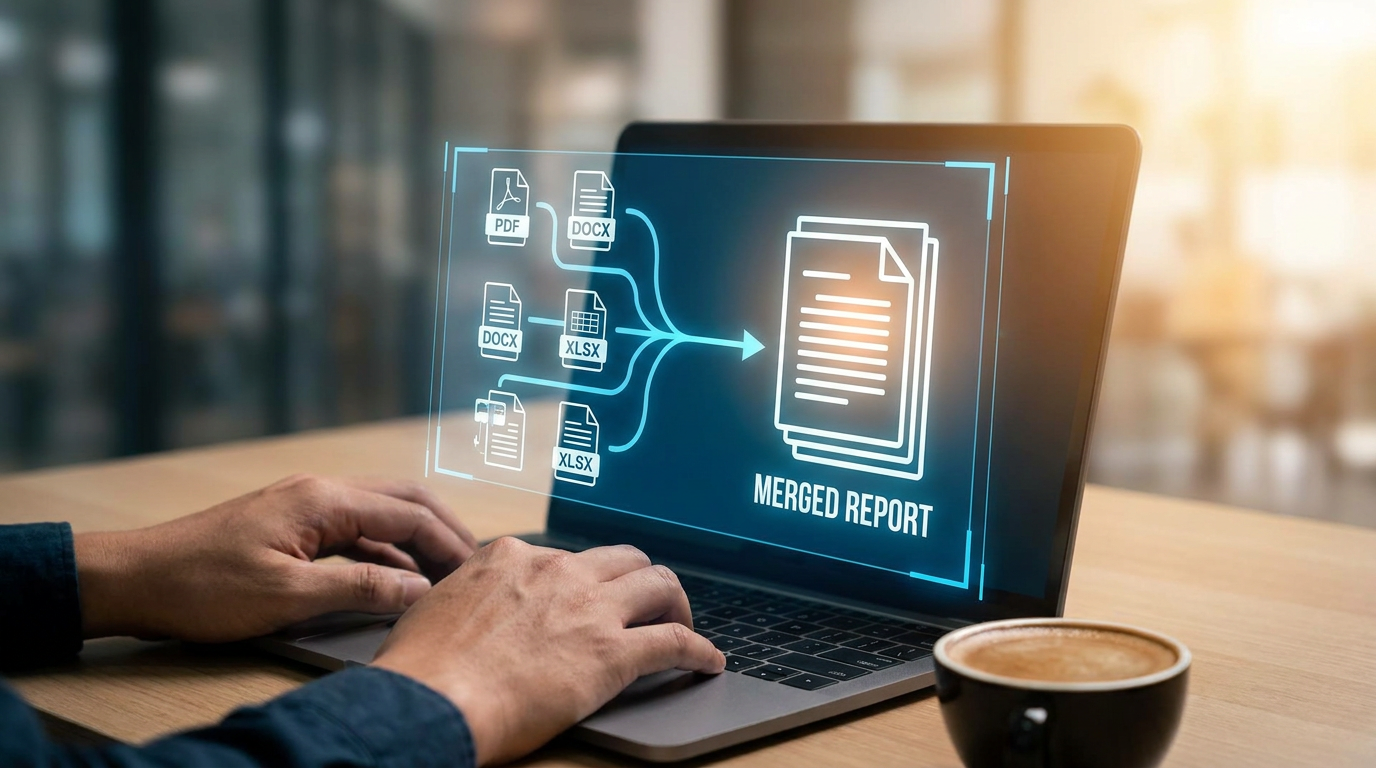
Managing documents gets messy quickly when information is spread across multiple files. One contract lives in one PDF, supporting documents sit in another, and revisions are saved somewhere else entirely. Before long, sharing or reviewing documents becomes harder than it needs to be.
That’s why so many teams and individuals choose to combine PDF files into a single document. Instead of juggling separate attachments and versions, everything stays organized in one place.
Modern PDF tools make this process much easier than it used to be. You can upload several documents, arrange them in the right order, and merge them within seconds without installing complicated software.
What Does It Mean to Combine PDFs?
Combining PDFs means merging multiple PDF documents into one file. Instead of storing or sending separate documents individually, users can:
- Merge reports into one file
- Combine contracts and appendices
- Join invoices, forms, or presentations together
The final result is a single PDF that contains all selected pages and documents in the chosen order.
Many platforms now support browser-based workflows, which makes it possible to merge PDFs online without relying on desktop software.
Why You Might Need to Merge PDF Files
There are many situations where combining documents makes workflows easier.
Business Documents
Businesses often need to:
- Merge contracts and supporting files
- Combine reports from multiple departments
- Organize proposals into one document
Sending a single file is usually cleaner and easier for recipients.
Education and Research
Students and researchers regularly merge:
- Lecture notes
- Research papers
- Assignment files
- Reference materials
Keeping related information together reduces confusion.
Administrative Work
Administrative workflows often involve multiple forms and records that need to stay connected.
Instead of tracking separate documents, users can merge files into one PDF for easier storage and review.
Client Deliverables
Freelancers and agencies frequently combine presentations, contracts, invoices, and revisions into one organized package before sharing with clients.
Key Features of PDF Combining Tools
Not all PDF merging tools work the same way. Some focus on quick browser-based tasks, while others support larger or more advanced workflows.
Useful features often include:
Drag-and-Drop Uploading
Allows users to upload and arrange files easily.
Page Reordering
Lets users organize documents before combining them.
Cloud Access
Supports workflows across multiple devices without relying on one computer.
Compression Options
Reduces final file size after merging.
Additional Editing Tools
Some platforms also allow users to:
- Rotate pages
- Delete sections
- Rearrange content
- Split PDF documents when needed
Many modern tools combine editing and merging into the same workflow, which helps reduce unnecessary steps.
How to Combine Multiple PDFs Step-by-Step
The process itself is usually straightforward.
1. Upload Your Files
Open your preferred PDF combiner online and upload the PDF files you want to merge.
Most platforms support drag-and-drop uploading for faster setup.
2. Arrange the Files in Order
Before combining the documents, organize them carefully.
Check:
- Page order
- File sequence
- Missing sections
This step matters because the final PDF follows the order you choose.
3. Merge the Documents
Once everything is arranged correctly, start the merging process. Most tools handle this automatically within seconds.
4. Review the Final File
Always check the combined PDF before sharing it.
Look for:
- Missing pages
- Incorrect order
- Formatting issues
- Duplicate sections
5. Download or Share
After reviewing the file, download it or share it directly through your preferred platform.
Understanding how to merge documents properly helps avoid unnecessary revisions later.
Best Tools to Merge PDFs Online
There are many browser-based tools available for merging PDFs.
Lumin
Lumin combines PDF editing, collaboration, and document management in one browser-based platform.
Users can:
- Combine files quickly
- Reorder pages
- Edit PDFs directly
- Collaborate on shared documents
Because it works online, files stay accessible across devices without relying on local installations.
Smallpdf
Smallpdf focuses on quick browser-based PDF tasks including merging, compression, and conversion.
It’s often used for lightweight workflows and occasional document handling.
iLovePDF
iLovePDF offers tools for combining, converting, compressing, and organizing PDF files online.
Its interface is simple, which makes it accessible for new users.
Adobe Acrobat Online
Adobe’s browser-based platform supports PDF merging alongside more advanced editing features.
It works well for users already working within Adobe ecosystems.
The best option depends on how often you work with PDFs and whether you also need editing or collaboration tools.
Benefits of Combining PDFs into One File
Combining PDFs simplifies document management in several ways.
Better Organization
Related files stay together instead of being scattered across folders.
Easier Sharing
Recipients only need to open one file instead of multiple attachments.
Cleaner Storage
Fewer separate files make document systems easier to manage.
Improved Collaboration
Teams reviewing one organized document avoid confusion caused by disconnected versions.
Faster Workflows
Instead of constantly switching between files, users work within one consolidated document.
Many users also combine files before they edit PDF documents so they can manage all revisions in one place.
Common Issues When Merging PDF Files
Even simple merging workflows can create issues occasionally.
File Order Problems
Documents combined in the wrong sequence can create confusion later. Always review the order before finalizing the merge.
Large File Sizes
Combining many PDFs can increase the final file size significantly. Compression tools may help reduce storage and sharing problems.
Formatting Differences
Documents created from different sources may display inconsistent fonts, spacing, or layouts after merging. This is especially common when combining files exported from different software systems.
Corrupted or Locked Files
Some PDFs may contain restrictions or file corruption that prevent successful merging. Checking document permissions beforehand helps avoid interruptions.
Tips for Organizing PDFs Before Combining
Preparation makes merging much easier.
Use Clear File Names
Organized names reduce confusion during upload and sorting.
Group Related Documents Together
Keep files connected by project, client, or workflow before merging them.
Remove Unnecessary Pages
Delete outdated or duplicate pages beforehand so the final document stays clean.
Decide on the Final Structure Early
Knowing the desired order in advance helps avoid rework later. Good preparation makes merging PDFs much smoother overall.
Online vs Offline PDF Merging Tools
Both online and offline tools have advantages depending on the workflow.
Online PDF Tools
Best for:
- Quick document merging
- Remote work
- Multi-device access
- Collaboration workflows
Advantages include:
- No installation required
- Accessible anywhere
- Easier sharing and cloud integration
Offline/Desktop Tools
Best for:
- Very large files
- Offline work environments
- High-volume document processing
Desktop tools may provide more processing power for complex workflows, but browser-based platforms are usually more flexible for everyday use.
Final Thoughts: Simplify Document Management by Merging PDFs
Managing documents becomes much easier when related information lives in one organized file instead of scattered across multiple PDFs.
The ability to combine PDF files quickly helps reduce clutter, simplify sharing, and make workflows easier to manage consistently.
For most users, the biggest benefit isn’t the merge itself. It’s removing the small frustrations that come from handling too many disconnected files every day.